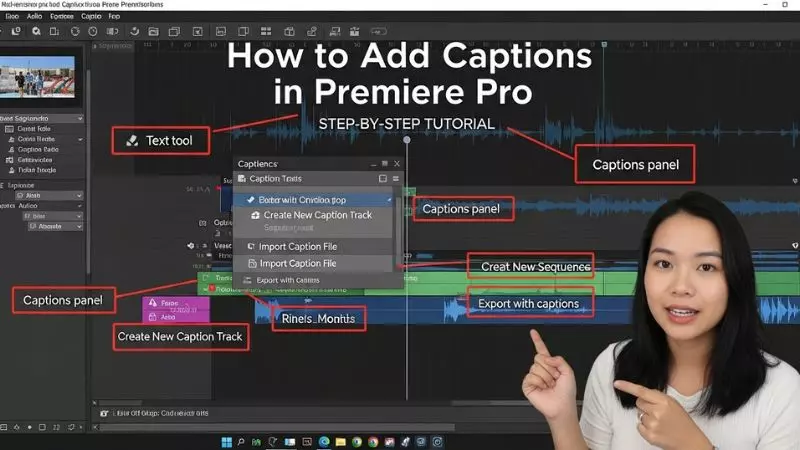
Learning how to add captions in Premiere Pro is one of the best ways to improve video engagement, boost audience retention, and make your content more accessible. Whether you are editing YouTube videos, TikTok clips, online courses, or cinematic content, Adobe Premiere Pro caption tools help creators add professional subtitles with ease.
Many beginners search for easy caption editing in Premiere Pro, automatic subtitle generator, and how to create subtitles for videos because captions are now essential for modern video marketing and SEO.
If you want a fast and beginner friendly method, this complete guide on How to Add Captions in Premiere Pro will help you understand speech to text features, subtitle customization, caption formatting, and export settings step by step.
From auto generated captions in Premiere Pro to manual subtitle editing for cinematic videos, this tutorial covers everything content creators need to produce high quality videos with accurate captions and better viewer experience.
How to Add Captions in Premiere Pro

Adding captions in modern versions of Adobe Premiere Pro is now easier, faster, and more accurate than ever before. Whether you are creating YouTube videos, Instagram reels, online courses, or professional documentaries, captions help improve engagement, accessibility, SEO rankings, and watch time.
Today, captions are not only important for viewers with hearing difficulties, but they also help videos rank better on search engines and social media platforms. Many creators now use automatic subtitle generation in Premiere Pro to save time and increase productivity.
Why Captions Matter in Video Editing
Captions are one of the most powerful features for modern video content.
Benefits of Adding Captions
- Improve audience retention
- Increase video watch time
- Make videos accessible to everyone
- Help viewers watch videos without sound
- Boost YouTube and Google SEO
- Improve social media engagement
- Increase professionalism in videos
Best Use Cases for Premiere Pro Captions
| Video Type | Why Captions Help |
| YouTube Videos | Better engagement and SEO |
| Instagram Reels | Viewers often watch muted |
| Online Courses | Improves learning experience |
| Interviews | Makes speech easier to understand |
| Podcasts | Adds accessibility |
| Marketing Videos | Improves conversion rates |
How to Add Captions in Premiere Pro Step by Step
Modern versions of Premiere Pro include an automatic speech to text feature that creates captions within minutes.
Step 1: Import Your Video
Open Premiere Pro and create a new project.
Then:
- Click File
- Select Import
- Choose your video file
- Drag the video into the timeline
Step 2: Open the Text Panel
To generate subtitles:
- Click Window
- Select Text
- Open the Transcript tab
This is where Premiere Pro automatically converts speech into text.
Step 3: Create Automatic Transcript
Now click:
- Transcribe Sequence
Premiere Pro will analyze your audio and generate text automatically.
Important Settings Before Transcribing
| Setting | Recommended Option |
| Audio Analysis | Mix |
| Language | English |
| Speaker Detection | Enable |
| Audio Track | All Audio |
The transcription process may take a few minutes depending on your video length.
How to Add Subtitles in Premiere Pro Automatically
Automatic subtitles are one of the most searched features in Premiere Pro because they save massive editing time.
Generate Captions Automatically
After transcription:
- Click Create Captions
- Choose caption format
- Select subtitle style
- Click Create
Premiere Pro will instantly place captions on your timeline.
Best Caption Format Settings
| Caption Setting | Recommended Value |
| Format | Subtitles |
| Style | Default |
| Lines | Single Line |
| Minimum Duration | 1 Second |
| Maximum Length | 42 Characters |
These settings help create professional readable captions.
How to Edit Captions in Premiere Pro
Automatic captions are not always perfect. You should always review them carefully.
Edit Caption Text
To edit captions:
- Click any caption block
- Modify the text directly
- Adjust timing if needed
- Correct spelling mistakes
Professional Caption Editing Tips
- Keep sentences short
- Use easy language
- Avoid large text blocks
- Maintain proper punctuation
- Sync captions accurately with speech
How to Change Caption Style in Premiere Pro

Stylish subtitles improve viewer attention and make videos more professional.
Customize Caption Design
You can edit:
- Font style
- Font size
- Text color
- Background color
- Caption position
- Shadow effects
Best Caption Styles for Social Media Videos
| Platform | Recommended Style |
| YouTube | White text with black shadow |
| TikTok | Bold colorful captions |
| Instagram Reels | Large centered text |
| Facebook Videos | Clean subtitle layout |
How to Add Captions in Premiere Pro 2021
Premiere Pro 2021 introduced the new Speech to Text workflow that replaced older caption methods.
Features Available in Premiere Pro 2021
- Automatic speech recognition
- Faster subtitle generation
- Better caption management
- Improved timeline editing
- Multi language support
Steps in Premiere Pro 2021
- Open Text Panel
- Transcribe Sequence
- Create Captions
- Edit and export subtitles
The workflow is very similar to current versions, but newer updates provide better AI accuracy.
How to Add Captions in Premiere Pro 2020
Premiere Pro 2020 used an older caption workflow before Adobe introduced advanced AI transcription.
Manual Caption Method in Premiere Pro 2020
In older versions:
- Go to File
- Select New
- Click Captions
- Add captions manually
This process required more time because automatic speech to text was limited or unavailable.
Difference Between Premiere Pro 2020 and Latest Versions
| Feature | Premiere Pro 2020 | Latest Premiere Pro |
| Auto Transcription | Limited | Advanced AI |
| Caption Editing | Basic | Professional |
| Speech Recognition | Slow | Fast |
| Workflow | Manual Heavy | Automated |
| Accuracy | Medium | High |
How to Add Captions in Premiere Pro Free
Many beginners want to know whether captions can be added for free.
Free Caption Options in Premiere Pro
If you already have Premiere Pro subscription:
- Automatic captions are included
- Speech to text is built in
- No separate plugin required
Free Alternatives for Subtitle Creation
If you do not want paid software, you can use:
- YouTube automatic subtitles
- Free online subtitle generators
- Open source subtitle editors
However, Premiere Pro provides much better control and professional quality.
Common Problems While Adding Captions

Many editors face issues during subtitle creation.
Captions Not Showing
Possible reasons:
- Caption track disabled
- Wrong export settings
- Outdated Premiere Pro version
Automatic Transcription Not Working
Try these fixes:
- Update Premiere Pro
- Check internet connection
- Verify audio quality
- Use supported language settings
Best Export Settings for Captions
After finishing subtitles, export your video correctly.
Recommended Export Settings
| Setting | Recommended Value |
| Format | H.264 |
| Resolution | 1080p |
| Captions | Burn Into Video |
| Bitrate | High Quality |
Burned captions are permanently visible in the video and work best for social media uploads.
SEO Tips for Captioned Videos
Captions can help videos rank higher on search engines.
Smart Video SEO Strategies
- Add keyword rich subtitles
- Use searchable phrases naturally
- Include captions in multiple languages
- Upload subtitle files on YouTube
- Use engaging thumbnail and title
How to Change Style of Captions in Premiere Pro
Changing the style of captions in Adobe Premiere Pro helps your videos look more professional, modern, and engaging. Stylish subtitles improve viewer attention and make your content easier to watch on YouTube, TikTok, Instagram Reels, and online courses.
In the latest Premiere Pro version, editors can fully customize subtitle fonts, colors, backgrounds, shadows, animations, and positioning directly inside the Essential Graphics panel.
To change caption style, first select your subtitle track in the timeline. Then open the Essential Graphics panel where you can modify text appearance in real time. Many creators now use bold subtitle styles, animated captions, and branded text colors to increase audience retention and create viral video content.
Best Caption Style Settings for Modern Videos
| Setting | Recommended Style |
| Font | Sans Serif or Bold Fonts |
| Text Size | Medium to Large |
| Text Color | White or Yellow |
| Background | Semi Transparent Black |
| Position | Bottom Center |
| Shadow | Soft Shadow for Visibility |
Professional Caption Styling Tips
- Use readable fonts for mobile viewers
- Keep subtitle colors consistent with branding
- Add shadows for better text visibility
- Avoid overly decorative fonts
- Use larger text for short form videos
- Keep captions inside safe margins
Stylish captions can dramatically improve watch time and viewer engagement, especially for social media videos and educational tutorials.
How to Add Captions in Premiere Pro Mac

Adding captions in Premiere Pro on Mac works almost the same as Windows. Adobe has optimized the latest macOS version for faster subtitle generation, smoother editing, and improved Speech to Text accuracy. Mac users can create automatic subtitles directly inside the Text workspace without needing external software.
If you are using a MacBook Pro, iMac, or Mac Studio, Premiere Pro allows you to transcribe videos automatically and generate captions in just a few clicks. This workflow is especially useful for YouTubers, online teachers, podcasters, and content creators working on Apple devices.
Steps to Add Captions on Mac
- Open Premiere Pro on your Mac
- Import your video into the project panel
- Drag the video to the timeline
- Open Window and select Text
- Click Transcribe Sequence
- Wait for speech analysis to complete
- Click Create Captions
- Edit subtitle style and timing
Why Mac Users Prefer Premiere Pro for Captions
| Feature | Benefit |
| Fast Processing | Smooth subtitle generation |
| Apple Silicon Support | Better rendering performance |
| AI Speech to Text | Accurate transcription |
| Easy Editing | Beginner friendly workflow |
| Cloud Sync | Access projects across devices |
Mac users working with M1, M2, and M3 chips often experience faster transcription speeds and smoother caption rendering compared to older systems.
Create Captions From Transcript Premiere Pro
Creating captions from transcript in Premiere Pro is one of the easiest ways to generate subtitles automatically. The software first converts spoken audio into a transcript, then transforms that transcript into synced captions. This feature saves hours of manual typing and improves editing efficiency for long videos, interviews, podcasts, webinars, and tutorials.
The transcript panel allows editors to review every spoken word before creating subtitles. You can correct spelling mistakes, remove filler words, and improve punctuation before converting the transcript into captions.
How Transcript Based Captions Work
- Premiere Pro analyzes your audio
- AI converts speech into text
- Transcript appears in the Text panel
- Users edit the transcript if needed
- Captions are generated automatically
- Subtitles sync with video timing
Benefits of Transcript Based Captions
| Advantage | Result |
| Faster Workflow | Saves editing time |
| Better Accuracy | AI powered transcription |
| Easy Corrections | Edit before subtitle creation |
| SEO Benefits | Improves searchable content |
| Accessibility | Makes videos viewer friendly |
This feature is widely used by professional editors because it combines transcription and subtitle creation into one streamlined workflow.
Captions Premiere Pro
Captions in Premiere Pro are now considered essential for professional video editing. Modern audiences often watch videos without sound, especially on mobile devices and social media platforms. Adding subtitles helps increase viewer retention, improve accessibility, and boost audience engagement.
Adobe Premiere Pro offers both manual and automatic caption workflows, making it suitable for beginners and advanced editors alike. The latest versions include AI powered speech recognition that automatically creates synchronized subtitles with high accuracy.
Types of Captions Available
| Caption Type | Usage |
| Open Captions | Always visible |
| Closed Captions | Can be turned on or off |
| Subtitles | Translation or dialogue text |
| Animated Captions | Social media content |
Popular Uses of Premiere Pro Captions
- YouTube video subtitles
- TikTok auto captions
- Instagram reel text overlays
- Educational video accessibility
- Podcast subtitle editing
- Business presentation captions
Using captions is now part of modern video SEO because subtitles help search engines understand spoken content more effectively.
How to Add Captions in Premiere Pro 2025
Adobe Premiere Pro 2025 introduces faster AI caption generation, smarter speech recognition, and improved subtitle styling tools. The newest version is designed for creators who want professional subtitles with minimal manual work. AI powered features now provide more accurate punctuation, speaker detection, and multilingual transcription support.
The 2025 workflow is optimized for short form content creators, YouTubers, online educators, and video marketers who need fast subtitle editing for daily uploads.
Latest Caption Workflow in Premiere Pro 2025
- Import your video sequence
- Open the Text workspace
- Click Transcribe Sequence
- Select language and speaker settings
- Generate AI transcript
- Review transcript accuracy
- Click Create Captions
- Customize subtitle style
- Export video with captions
New Features in Premiere Pro 2025
| Feature | Improvement |
| AI Caption Accuracy | Better speech recognition |
| Faster Transcription | Improved processing speed |
| Multi Language Support | More supported languages |
| Smart Styling | Easier subtitle customization |
| Speaker Detection | Better interview subtitles |
Best Practices for 2025 Captions
- Use high quality microphones for accurate transcription
- Keep captions short and readable
- Add branded subtitle styles
- Review AI generated punctuation
- Export captions in SRT format for YouTube SEO
Premiere Pro 2025 makes subtitle editing faster, smarter, and more beginner friendly than ever before. With AI powered caption tools becoming a major part of video editing workflows, learning these features can help creators produce professional content efficiently.
How to Add Captions in Premiere Pro 2024
Adobe Premiere Pro 2024 introduced a smoother and more AI powered caption workflow for video creators. The latest update improved speech recognition accuracy, subtitle editing speed, and multilingual transcription support. Whether you are creating YouTube tutorials, TikTok videos, Instagram reels, podcasts, or online courses, Premiere Pro 2024 makes subtitle generation easier than ever.
In Premiere Pro 2024, users can automatically convert spoken audio into captions using the built in Speech to Text feature. The updated Text panel now provides faster transcription and smarter subtitle synchronization, helping editors save time during post production.
Steps to Add Captions in Premiere Pro 2024
- Launch Adobe Premiere Pro 2024
- Import your video clips into the project panel
- Drag your video onto the timeline
- Open the Text workspace from the top menu
- Select the Transcript tab
- Click Transcribe Sequence
- Choose the correct audio language
- Wait for the AI transcription process
- Click Create Captions
- Customize subtitle style and formatting
Best Caption Settings in Premiere Pro 2024
| Setting | Recommended Value |
| Caption Format | Subtitles |
| Maximum Characters | 32 to 40 |
| Subtitle Lines | 2 lines |
| Position | Bottom center |
| Font Type | Clean sans serif font |
| Export Option | Burned in or SRT |
Why Editors Prefer Premiere Pro 2024 for Captions
- Faster AI subtitle generation
- Improved speech recognition accuracy
- Better subtitle editing tools
- Optimized workflow for YouTube creators
- Easier caption customization for social media videos
Premiere Pro 2024 is especially useful for creators who upload videos regularly and need quick automatic subtitles without relying on third party caption software.
How to Add Captions in Premiere Pro 2023
Premiere Pro 2023 made automatic subtitles more beginner friendly with a cleaner interface and improved caption controls. Many editors still use this version because it provides stable performance and accurate transcription tools for both short form and long form video editing.
The Speech to Text system in Premiere Pro 2023 allows creators to generate subtitles directly from spoken dialogue. This feature became highly popular among YouTubers, online educators, podcasters, and freelance video editors.
How Caption Creation Works in Premiere Pro 2023
- Import your video into the timeline
- Open the Text panel
- Start audio transcription
- Review the generated transcript
- Convert transcript into captions
- Adjust subtitle timing and style
- Export the final video with subtitles
Useful Features in Premiere Pro 2023
| Feature | Benefit |
| AI Speech Recognition | Automatic subtitle generation |
| Transcript Editing | Correct mistakes before captioning |
| Subtitle Styling | Customize fonts and colors |
| Export Captions | Save as SRT files |
| Multi Language Support | Create captions in different languages |
Pro Tips for Better Captions
- Use clear voice recordings for accurate subtitles
- Keep subtitles readable on mobile screens
- Avoid very long subtitle lines
- Review punctuation before exporting
- Match subtitle colors with your brand style
Premiere Pro 2023 remains a powerful option for content creators who want professional captions with a fast and reliable workflow.
How to Add Captions in Premiere Pro Manually

Manual captions in Premiere Pro give editors full control over subtitle timing, text placement, wording, and styling. Although automatic subtitles are faster, manual captioning is still preferred for cinematic videos, professional interviews, educational content, and projects requiring perfect subtitle accuracy.
When you create captions manually, you can carefully adjust every subtitle according to speech timing and visual presentation. This method is ideal when working with difficult audio, multiple speakers, or creative subtitle designs.
Step by Step Manual Caption Process
- Open your project in Premiere Pro
- Import your video and place it on the timeline
- Go to Window and open Text
- Click Create New Captions Track
- Select subtitle format
- Move the playhead to the starting point
- Add subtitle text manually
- Adjust caption duration on the timeline
- Customize font, color, and position
- Repeat for the entire video
Benefits of Manual Captions
| Advantage | Result |
| Full Accuracy | Better subtitle quality |
| Creative Freedom | Unique subtitle styling |
| Precise Timing | Improved viewer experience |
| Better Localization | Accurate translations |
| Professional Look | High quality video production |
Manual Captioning Tips
- Keep subtitles short and easy to read
- Use simple fonts for better visibility
- Synchronize captions carefully with dialogue
- Avoid covering important visual elements
- Maintain consistent subtitle formatting throughout the video
Manual caption editing may take more time, but it provides professional level control that many advanced editors and filmmakers prefer for premium video projects.
How to Add Captions in Premiere Pro 2026
Adobe Premiere Pro 2026 brings a smarter and faster caption workflow designed for modern content creators, YouTubers, podcasters, educators, and social media editors. The latest version uses advanced AI speech recognition to generate subtitles with better accuracy, cleaner punctuation, and improved speaker detection. This helps creators save editing time while producing professional quality videos with engaging captions.
In Premiere Pro 2026, the updated Text workspace allows users to create captions automatically, edit transcripts instantly, and apply stylish subtitle presets for different content formats like TikTok, YouTube Shorts, Instagram Reels, and long form videos.
Steps to Add Captions in Premiere Pro 2026
- Open Adobe Premiere Pro 2026
- Import your video clips into the project panel
- Drag your video to the timeline
- Open the Text workspace
- Click the Transcript tab
- Select Transcribe Sequence
- Choose the correct language settings
- Start AI transcription
- Review the transcript for mistakes
- Click Create Captions
- Customize subtitle style and positioning
- Export your video with captions
New Caption Features in Premiere Pro 2026
| Feature | Improvement |
| AI Speech Recognition | More accurate subtitles |
| Smart Speaker Detection | Better interview captions |
| Auto Punctuation | Cleaner subtitle formatting |
| Subtitle Templates | Faster styling workflow |
| Multi Language Support | More language options |
Best Practices for 2026 Caption Editing
- Use high quality audio recordings
- Keep captions short for mobile viewers
- Use bold readable fonts
- Add shadows for subtitle visibility
- Review AI generated text before exporting
Premiere Pro 2026 makes subtitle editing easier for beginners while also providing advanced customization tools for professional video editors.
How to Add Captions in Premiere Pro 2019
Premiere Pro 2019 used a more traditional caption workflow before Adobe introduced advanced AI transcription tools. Editors mainly relied on manual subtitle creation or imported subtitle files like SRT captions for YouTube and video accessibility projects.
Although Premiere Pro 2019 does not include the latest Speech to Text technology, users can still create professional captions using the built in Caption panel and timeline editing tools.
Steps to Add Captions in Premiere Pro 2019
- Open your Premiere Pro 2019 project
- Import your video clips
- Place your video on the sequence timeline
- Go to File and select New Captions
- Choose your caption format
- Add subtitles manually
- Adjust timing and duration
- Customize font and subtitle placement
- Export your project with captions
Caption Features in Premiere Pro 2019
| Feature | Availability |
| Manual Captions | Yes |
| AI Speech to Text | No |
| Subtitle Styling | Basic |
| SRT Import Support | Yes |
| Caption Timeline Editing | Yes |
Important Tips for Premiere Pro 2019 Users
- Use short subtitle lines for readability
- Sync captions carefully with dialogue
- Save captions separately for easier editing
- Use external transcription tools if needed
- Double check subtitle timing before exporting
Many editors still use Premiere Pro 2019 for simple subtitle editing because it performs well on older computers and remains stable for basic video production tasks.
How to Add Captions in Premiere Pro 2022
Adobe Premiere Pro 2022 became highly popular because of its improved automatic caption tools and faster Speech to Text workflow. This version helped creators generate subtitles directly inside Premiere Pro without using third party applications. YouTubers, freelancers, educators, and digital marketers widely adopted this version for efficient video captioning.
Premiere Pro 2022 introduced better subtitle customization options, allowing users to edit fonts, colors, text backgrounds, and caption positioning more easily.
How to Create Captions in Premiere Pro 2022
- Launch Premiere Pro 2022
- Import your video into the project panel
- Add the clip to the timeline
- Open Window and select Text
- Click Transcribe Sequence
- Wait for speech analysis to finish
- Select Create Captions
- Edit subtitle text if necessary
- Customize caption design
- Export your final video
Premiere Pro 2022 Caption Features
| Feature | Benefit |
| Automatic Subtitles | Faster editing workflow |
| AI Speech Recognition | Better transcription accuracy |
| Caption Styling | More design flexibility |
| Transcript Editing | Easier text correction |
| Export Options | SRT and burned in captions |
Professional Subtitle Tips for 2022
- Keep subtitle text easy to read
- Use consistent font styles
- Avoid placing captions over important visuals
- Review transcript accuracy carefully
- Export subtitles separately for YouTube SEO
Premiere Pro 2022 remains one of the best versions for creators who want reliable AI caption generation combined with beginner friendly editing tools.
Frequently Asked Questions
How do I add captions in Premiere Pro automatically?
To add automatic captions in Adobe Premiere Pro, open the Text panel, use the Speech to Text feature, and click Create Captions. This AI subtitle generator quickly converts spoken audio into synced subtitles.
Can Premiere Pro generate subtitles from audio?
Yes, Premiere Pro can create subtitles from audio using built in speech recognition technology. The transcription tool analyzes dialogue and generates editable video captions automatically.
Where is the caption tool in Premiere Pro?
The caption tool is located inside the Text workspace in Premiere Pro. You can access subtitle settings, transcript editing, and automatic caption generation from this panel.
How do I edit caption style in Premiere Pro?
Select your captions track and open the Essential Graphics panel to change font style, text color, subtitle background, size, and caption positioning for professional video editing.
Can I add captions in Premiere Pro on Mac?
Yes, Mac users can add subtitles in Premiere Pro using the same Speech to Text workflow available on Windows. The latest macOS version supports fast AI caption generation.
How do I create captions manually in Premiere Pro?
To create manual captions, add a new captions track, type subtitle text manually, and adjust timing directly on the timeline for accurate subtitle synchronization.
Does Premiere Pro support SRT subtitle export?
Yes, Premiere Pro allows users to export subtitles in SRT format, making it easier to upload captions to YouTube, online courses, and social media platforms.
Which Premiere Pro version is best for captions?
Premiere Pro 2025 and 2026 provide the best caption workflow because they include advanced AI transcription, faster subtitle generation, and improved caption customization tools.
Final Words
Learning How to Add Captions in Premiere Pro is an essential skill for modern video creators who want professional and accessible content. Captions improve viewer engagement, increase watch time, and make videos easier to understand on mobile devices and social media platforms.
Whether you are editing YouTube tutorials, TikTok videos, podcasts, or educational content, Premiere Pro provides powerful subtitle tools for every workflow.
The latest versions of Adobe Premiere Pro make subtitle editing faster with AI powered Speech to Text technology and customizable caption settings. By using clean subtitle styles, accurate timing, and readable formatting, creators can produce high quality videos that look professional and perform better in search results.
Consistent caption usage also improves video SEO and enhances audience experience across all platforms.

Hey there! I’m Sophie Lane, the creative mind behind CaptionRizz.com — your go-to space for everything witty, flirty, and full of charm. I’ve always believed that the right words can make anyone stand out — whether it’s a catchy Instagram caption, a smooth pick-up line, or the perfect rizz to impress someone special.
At CaptionRizz, my goal is simple: to help you express your mood, your style, and your personality through clever lines that grab attention. From romantic captions to bold one-liners, every piece is designed to make your words unforgettable.
I spend hours crafting original content that blends humor, confidence, and creativity — perfect for anyone who wants to upgrade their caption game or learn the art of modern “rizz talk.”
So whether you’re posting a photo, sliding into DMs, or just looking for that one perfect line — I’ve got you covered.
Let your words shine. Let your vibe speak.Welcome to CaptionRizz — where captions meet confidence. 💬✨