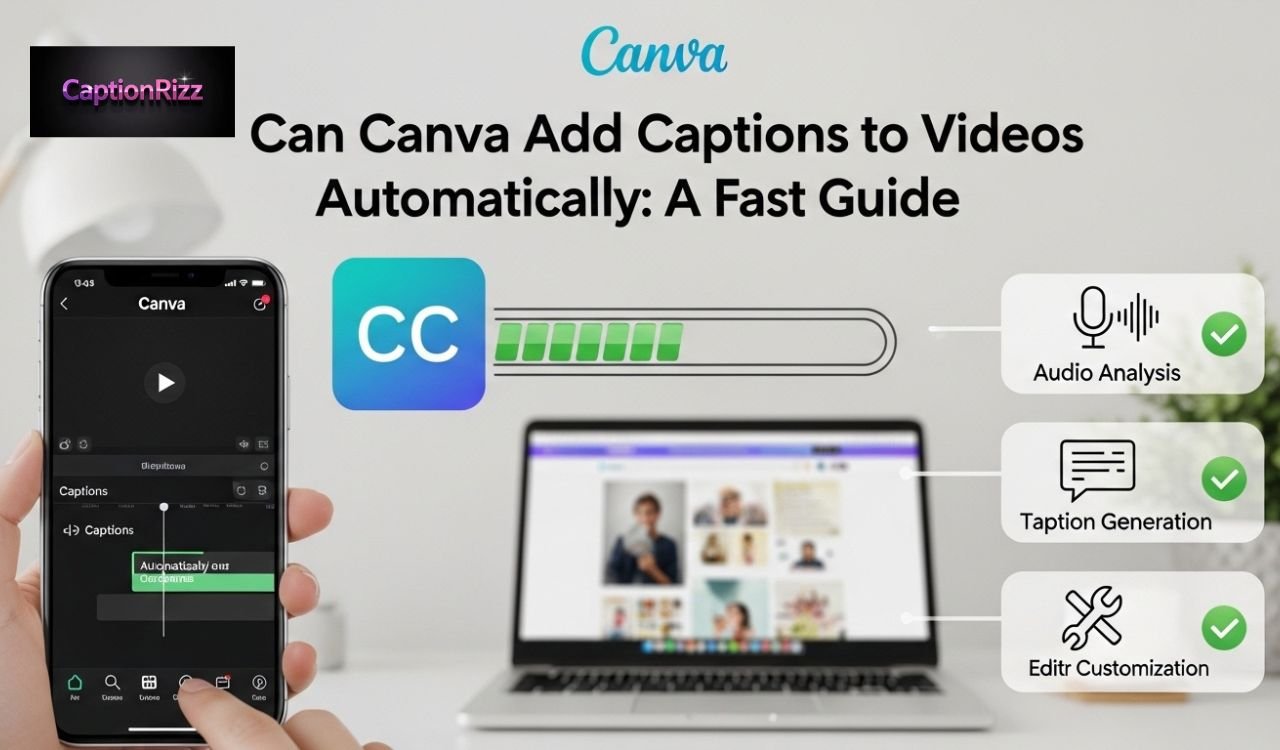
If you are wondering can Canva add captions to videos, the answer is yes, and it is easier than most creators think. Canva offers an automatic caption generator, video subtitle editor, and AI powered transcription tool that helps improve video accessibility and engagement.
Whether you want to add subtitles to social media videos, create captioned reels, or generate auto captions for YouTube and TikTok, Canva provides a simple built in solution. This guide will show how to use Canva auto captions, edit video subtitles, and create professional captioned videos without editing skills.
How to Add Captions to Canva Videos (Step-by-Step Guide)
Adding captions to videos in Canva is one of the easiest ways to improve video engagement, accessibility, and watch time. Captions help viewers understand your message even without sound, which is essential for Instagram Reels, YouTube Shorts, TikTok videos, and marketing content. Canva now includes an AI caption generator and automatic subtitle tool, allowing you to create professional captioned videos without advanced editing skills.
Step by Step Process to Generate Captions in Canva
Follow these beginner friendly steps carefully:
- Open Canva and click on Video Editor
- Upload your video from your device or Canva uploads
- Click on the video timeline to select it
- Go to the left panel and click on Apps
- Select Captions or search for “Auto captions”
- Click Generate captions automatically
- Wait a few seconds for Canva AI transcription
- Edit the captions text to fix errors
- Customize font, size, color, and position
- Export the video with captions included
Important tips for better caption accuracy:
- Use clear audio for accurate auto transcription
- Choose easy to read fonts for accessibility
- Keep captions short and readable
- Sync captions with video timing properly
| Step | Tool Used | Purpose | SEO Benefit |
| Upload video | Canva Uploads | Import video file | Video content optimization |
| Generate captions | Captions App | Auto subtitle creation | Improves accessibility SEO |
| Edit captions | Timeline Editor | Fix errors and timing | Better user experience |
| Export video | Download option | Final captioned video | Higher engagement rate |
Using this Canva automatic caption generator step by step guide, you can create professional videos optimized for both viewers and search platforms.
How to Add Text to Video in Canva Easily
Adding text and captions are slightly different. Text is usually used for titles, highlights, and call to actions, while captions represent spoken words. Canva allows you to add both easily using its built in video editor.
Simple steps to add text overlay in Canva video editor:
- Click on the Text tab
- Select Add a heading, subheading, or body text
- Drag and place text on your video
- Adjust font size and style
- Position text where it looks clean and visible
- Use animation effects like Fade or Typewriter
Best practices for adding text captions for social media videos:
- Use bold fonts for better readability
- Keep text in center safe area
- Avoid covering important visuals
- Use brand colors for consistency
| Text Feature | Best Setting | Why It Matters |
| Font style | Sans serif font | Easier to read on mobile |
| Font size | Medium to large | Improves visibility |
| Color contrast | White text with shadow | Better readability |
| Position | Bottom center | Standard subtitle position |
This method is perfect if you want to add captions manually in Canva video editor without auto captions tool.
How to Add Subtitles to Canva Video (Beginner Method)
Subtitles are essential if you want to reach a global audience. Canva allows you to auto generate subtitles or manually add subtitles, making it ideal for beginners and content creators.
Two main ways to add subtitles in Canva:
Method 1: Automatic subtitle generator
- Click Apps section
- Select Captions tool
- Click Generate automatically
- Edit subtitles after generation
Method 2: Manual subtitle adding
- Click Text tab
- Add text box
- Type subtitle manually
- Adjust timing using timeline
Benefits of Canva subtitle generator:
- Saves time using AI transcription
- Improves video accessibility
- Helps viewers understand without sound
- Increases social media engagement
| Subtitle Method | Speed | Accuracy | Best For |
| Auto captions | Very fast | High accuracy | YouTube, Reels, TikTok |
| Manual subtitles | Slow | 100 percent accurate | Professional videos |
Using Canva subtitle tools, you can create SEO optimized videos with captions for social media growth.
Add Captions to Video in Canva Free Version
Many users ask if captions are available in Canva free plan. The good news is that Canva free version supports automatic captions, subtitle editing, and caption customization without paid subscription.
Features available in Canva free caption generator:
- Automatic captions generation
- Manual subtitle editing
- Basic font and style customization
- Caption positioning and resizing
- Export video with captions included
Limitations in free version:
- Limited premium fonts
- Limited language support compared to Pro
- No advanced brand kit features
| Feature | Free Version | Pro Version |
| Auto captions | Available | Available |
| Caption editing | Available | Available |
| Premium fonts | Limited | Full access |
| Export quality | High quality | Higher customization |
This makes Canva free plan one of the best tools for adding captions to videos without paid software.
Canva Mobile vs Desktop Caption Adding Process
You can add captions using both mobile and desktop, but the experience is slightly different. Desktop provides more control, while mobile is more convenient for quick edits.
Mobile caption adding steps:
- Open Canva mobile app
- Upload or open video
- Tap Apps section
- Select Captions tool
- Generate and edit captions
- Export video
Desktop caption adding steps:
- Open Canva website
- Upload video file
- Click Apps and select captions
- Generate auto captions
- Edit using full timeline control
- Export final video
| Feature | Mobile | Desktop |
| Ease of use | Very easy | Easy |
| Editing control | Basic | Advanced |
| Speed | Fast | Faster |
| Best for | Quick edits | Professional editing |
Recommendation as a teacher and video creator:
- Use mobile for quick social media captions
- Use desktop for professional caption editing
- Always review captions before exporting
Can Canva Add Auto Captions to Videos?
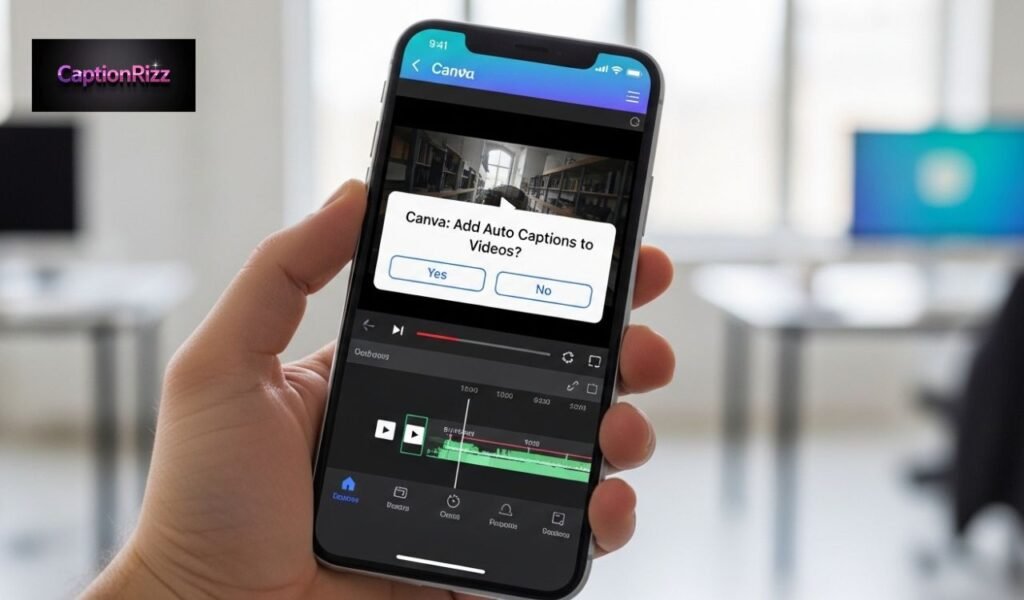
Yes, Canva can automatically add captions to videos using its built-in AI auto caption generator and subtitle transcription tool. This feature converts your video speech into accurate subtitles within seconds, helping creators improve video accessibility, viewer retention, and social media engagement. Auto captions are especially useful for YouTube Shorts, Instagram Reels, TikTok videos, and online course content, where many viewers watch videos without sound.
From a teaching perspective, auto captions are one of the most powerful features because they save time, reduce manual work, and improve the professional quality of your video content.
Key benefits of Canva automatic captions:
- Automatically converts speech to text
- Improves accessibility for silent viewers
- Boosts video watch time and engagement
- Helps with SEO optimization and discoverability
- Makes videos look more professional
| Feature | Description | Benefit for Creators |
| AI caption generator | Converts voice into subtitles | Saves editing time |
| Subtitle editor | Allows caption editing | Improves accuracy |
| Caption customization | Change font and style | Professional appearance |
| Multi platform support | Works for social media videos | Increases reach |
This makes Canva one of the best tools for automatic video caption generation without advanced editing software.
How to Enable Auto Captions in Canva
Enabling auto captions in Canva is simple and beginner friendly. You do not need technical skills or external subtitle software.
Step by step guide to enable Canva auto captions:
- Open your video project in Canva
- Click on the video timeline to select your video
- Go to the left side panel and click Apps
- Search for Captions
- Click on Auto captions tool
- Select your video language
- Click Generate captions
- Wait for Canva AI to create subtitles automatically
Best settings to choose for better caption results:
- Select correct spoken language
- Use clear audio recordings
- Avoid background noise
- Use high quality video file
| Setting | Recommended Option | Reason |
| Language selection | Match video language | Improves accuracy |
| Audio clarity | Clear voice | Better transcription |
| Video quality | High quality audio | Reduces caption errors |
This process helps you enable automatic captions in Canva video editor quickly and efficiently.
Canva Auto Subtitle Accuracy Explained
Canva uses advanced AI speech recognition technology to generate subtitles automatically. The accuracy depends mainly on audio quality, pronunciation, and background noise.
Average Canva caption accuracy based on conditions:
| Audio Quality | Caption Accuracy | Result |
| Clear voice, no noise | 90 to 98 percent | Excellent |
| Minor background noise | 80 to 90 percent | Very good |
| Heavy noise | 60 to 75 percent | Needs editing |
Factors that improve auto caption accuracy:
- Clear microphone recording
- Slow and clear speaking
- Minimal background noise
- Correct language selection
Factors that reduce accuracy:
- Fast speaking speed
- Strong accents
- Background music or noise
- Low quality audio recording
As a teacher recommendation, always review and edit auto captions before publishing. Even the best AI subtitle generators need minor corrections.
How to Edit Auto Captions in Canva
After generating captions, Canva allows you to fully edit subtitles for accuracy and professional appearance.
Steps to edit captions in Canva video editor:
- Click on the generated captions text box
- Edit spelling and wording
- Adjust caption timing using timeline
- Change font style and size
- Change caption color and background
- Move caption position if needed
Best caption editing practices for professional videos:
- Use easy to read fonts
- Keep captions short and clear
- Use high contrast colors
- Place captions at bottom center
Recommended caption styling settings:
| Element | Best Option | Benefit |
| Font | Simple sans serif | Better readability |
| Size | Medium large | Easy to read on mobile |
| Color | White with shadow | High visibility |
| Position | Bottom center | Standard subtitle position |
Editing captions improves both video accessibility and viewer experience, which increases engagement.
Manual vs Auto Captions in Canva – Which is Better?
Both manual and auto captions have advantages. The best choice depends on your video type, time, and accuracy requirements.
Comparison between manual captions and auto captions:
| Feature | Auto Captions | Manual Captions |
| Speed | Very fast | Slow |
| Accuracy | High but needs review | Perfect accuracy |
| Ease of use | Very easy | Requires effort |
| Best for | Social media videos | Professional courses |
Auto captions are best for:
- YouTube Shorts creators
- TikTok and Instagram videos
- Quick content production
- Beginner video creators
Manual captions are best for:
- Professional training videos
- Educational courses
- Brand videos requiring perfection
- Technical content
Teacher recommendation for best results:
- Use auto captions first
- Edit captions manually for accuracy
- Always review before exporting
How to Add Subtitles to a Video Free (No Watermark)
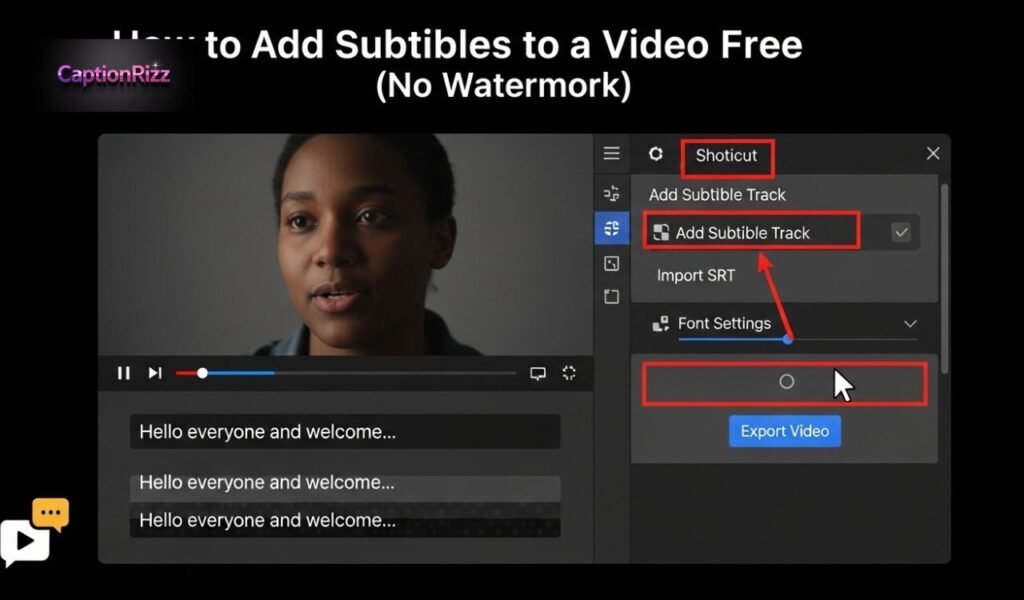
Adding subtitles to your videos for free without watermark is now easier thanks to modern AI subtitle generator tools and online video editors. Subtitles improve video accessibility, audience retention, and engagement rate, especially on platforms where users watch without sound. As a teacher guiding you professionally, I recommend using trusted tools like Canva, which offer automatic subtitle generation, manual editing, and watermark free export in the free version.
Why subtitles are essential for video creators and marketers:
- Increase viewer understanding and accessibility
- Improve video watch time and retention rate
- Make content friendly for silent viewing
- Boost SEO performance and discoverability
- Improve engagement on YouTube, TikTok, and Instagram
Basic process to add subtitles free without watermark:
- Upload your video to a free subtitle generator
- Use AI auto captions or add subtitles manually
- Edit subtitles for accuracy and timing
- Customize font, color, and size
- Export video in high quality without watermark
| Step | Tool Feature | Result |
| Upload video | Video editor | Prepare video for captions |
| Generate subtitles | AI caption generator | Automatic subtitles |
| Edit captions | Subtitle editor | Improve accuracy |
| Export video | Download settings | Watermark free output |
Following this process helps you create professional videos with subtitles free and without watermark.
Best Free Subtitle Generator for Videos
Choosing the right subtitle generator is important for quality and watermark free export. The best tools provide AI transcription, subtitle editing, and high quality export options.
Top features to look for in a free subtitle generator:
- Automatic speech to text conversion
- No watermark on exported video
- Subtitle editing and timing control
- High quality video export
- Easy beginner friendly interface
Recommended free subtitle generator tool:
- Canva auto captions tool
- Built in AI transcription feature
- No watermark in free exports
- Professional subtitle customization
| Feature | Availability in Canva Free | Benefit |
| Auto subtitle generator | Yes | Saves time |
| Manual subtitle editing | Yes | Improves accuracy |
| Watermark free export | Yes | Professional output |
| HD export quality | Yes | Maintains video quality |
This makes Canva one of the best free subtitle generator tools without watermark for beginners and professionals.
Add Subtitles to Video Online Without Watermark
Online subtitle generators allow you to add captions directly from your browser without installing software. This method is fast and works on both desktop and mobile.
Step by step process using Canva online subtitle editor:
- Open Canva website in your browser
- Upload your video file
- Click Apps section
- Select captions tool
- Click generate auto captions
- Edit captions if needed
- Export video without watermark
Advantages of online subtitle generators:
- No software installation required
- Works on any device
- Fast AI caption generation
- Easy subtitle editing
- Free and watermark free export
| Feature | Online Subtitle Tools | Offline Software |
| Installation | Not required | Required |
| Ease of use | Very easy | Moderate |
| Speed | Fast | Slower |
| Accessibility | Anywhere | Device limited |
This method is ideal if you want to add subtitles to videos online free without watermark and without software installation.
Free AI Video Caption Generator Tools
AI caption generator tools automatically convert spoken words into subtitles using advanced speech recognition technology. These tools save hours of manual work and improve productivity.
Key features of AI video caption generators:
- Automatic speech recognition
- Real time subtitle generation
- Subtitle editing and customization
- Multi language support
- Fast and accurate transcription
Best free AI subtitle generator tool recommendation:
- Canva AI captions generator
- Automatic subtitle creation
- Beginner friendly interface
- Professional export quality
Comparison of manual vs AI subtitle generation:
| Feature | AI Caption Generator | Manual Subtitles |
| Speed | Very fast | Slow |
| Accuracy | High | Perfect |
| Effort required | Low | High |
| Best for | Social media videos | Professional editing |
As a teacher recommendation, use AI caption generators first, then manually edit for perfect results.
Exporting Captioned Videos Without Losing Quality
Export settings are very important if you want professional videos without quality loss. Incorrect settings can reduce video clarity and subtitle visibility.
Best export settings for captioned videos:
- Export in MP4 format
- Choose highest quality resolution
- Use original video dimensions
- Avoid unnecessary compression
Recommended export settings table:
| Setting | Best Option | Reason |
| Format | MP4 | Universal compatibility |
| Resolution | 1080p or higher | High video clarity |
| Quality | High quality | Professional output |
| Frame rate | Same as original | Smooth playback |
Professional teacher tips for exporting captioned videos:
- Always preview video before exporting
- Check subtitle timing and position
- Use high quality export settings
- Avoid re exporting multiple times
How to Edit or Remove Captions in Canva
Editing or removing captions in Canva is a simple process, but doing it correctly is important for creating professional, accurate, and SEO optimized videos. Whether you are fixing subtitle mistakes, adjusting caption timing, or removing captions completely, Canva provides full control through its subtitle editor, timeline controls, and text customization tools.
As a teacher guiding you step by step, I recommend always reviewing captions before exporting to ensure better viewer experience and higher engagement.
Why editing captions is important for video quality and engagement:
- Fixes AI transcription errors
- Improves subtitle readability
- Ensures perfect sync with audio
- Enhances professional appearance
- Improves accessibility and retention rate
Main caption editing options available in Canva:
| Caption Control | Purpose | Benefit |
| Edit text | Correct subtitle words | Improves accuracy |
| Delete captions | Remove unwanted subtitles | Clean video output |
| Style adjustment | Change font and color | Better readability |
| Timeline sync | Match captions with audio | Professional timing |
Using these tools, you can fully control your Canva subtitle editing workflow without needing advanced video editing software.
How to Edit Captions in Canva After Upload
Once captions are generated or added, you can edit them anytime using Canva caption editor. This is useful for correcting spelling errors, improving clarity, or optimizing subtitles for audience understanding.
Step by step guide to edit captions in Canva:
- Open your Canva video project
- Click on the captions text box on the video
- Select the caption you want to edit
- Double click on text and correct words
- Adjust caption duration using timeline
- Preview video to check accuracy
Best practices for editing captions professionally:
- Keep sentences short and readable
- Fix grammar and spelling errors
- Match captions exactly with spoken words
- Avoid overcrowding text on screen
Recommended caption editing settings:
| Element | Best Practice | Result |
| Caption length | 5 to 10 words per line | Easy reading |
| Display time | 2 to 5 seconds | Better understanding |
| Font clarity | Simple font | Professional look |
Following these practices improves your video subtitle readability and viewer engagement rate.
How to Remove Captions from Canva Video
If you no longer want captions in your video, Canva allows you to remove them easily. This is helpful when captions are incorrect or you want a clean video version.
Step by step guide to remove captions in Canva:
- Open your video project in Canva
- Click on the captions text box
- Press Delete key on keyboard
- Or click Delete option from toolbar
- Preview video to confirm removal
When you should remove captions:
- Captions contain incorrect text
- You want to regenerate captions
- You are creating a clean video version
- Subtitles are not needed for your audience
Caption removal methods comparison:
| Method | Speed | Best Use |
| Delete text box | Very fast | Remove all captions |
| Delete individual caption | Fast | Remove specific subtitle |
This process helps you maintain clean and professional video editing workflow in Canva.
How to Adjust Font, Size & Subtitle Style
Customizing caption style improves readability and makes your video look professional. Canva provides multiple options for adjusting subtitle design.
Steps to customize subtitle appearance:
- Click on caption text box
- Go to top toolbar
- Change font style
- Adjust font size
- Change text color
- Add background or shadow
- Adjust caption position
Best subtitle style settings recommended by professionals:
| Style Element | Recommended Setting | Benefit |
| Font type | Sans serif font | Easy readability |
| Font size | Medium to large | Mobile friendly |
| Color | White or yellow | High visibility |
| Background | Semi transparent | Better contrast |
| Position | Bottom center | Standard subtitle format |
Teacher recommendation for best subtitle styling:
- Always use high contrast colors
- Avoid fancy or decorative fonts
- Keep subtitle position consistent
- Ensure captions are easy to read on mobile
This improves your video subtitle visibility and viewer experience.
Syncing Captions with Audio in Canva
Caption timing is very important. If captions appear too early or too late, it creates a poor viewer experience. Canva allows you to sync captions perfectly using timeline controls.
Steps to sync captions with video audio:
- Click on caption text box
- Open timeline view
- Drag caption edges to adjust timing
- Match caption timing with spoken words
- Preview video to verify synchronization
Signs your captions need syncing:
- Captions appear before speech
- Captions appear after speech
- Captions disappear too quickly
Recommended subtitle timing settings:
| Timing Element | Recommended Duration | Result |
| Minimum display time | 2 seconds | Easy reading |
| Maximum display time | 5 seconds | Maintains flow |
| Sync accuracy | Exact speech timing | Professional quality |
Teacher level professional tip:
Always watch your full video once after syncing captions. This ensures your Canva video captions are perfectly synchronized, readable, and professional, which increases engagement and content quality.
Canva Video Captions for Instagram & Facebook
Video captions are essential for social media success because most users scroll and watch videos without sound. Using Canva, you can easily add automatic captions, animated subtitles, and engaging text overlays that improve watch time, audience retention, and engagement rate.
From a teacher perspective, captions are not optional anymore. They are a core part of Instagram Reels optimization, Facebook video marketing, and short form video SEO strategy.
Why captions improve Instagram and Facebook video performance:
- Help viewers understand videos without sound
- Increase average watch time and retention
- Improve accessibility for global audiences
- Boost engagement rate and interaction
- Improve algorithm ranking and visibility
Impact of captions on social media video performance:
| Factor | Without Captions | With Captions |
| Watch time | Low | High |
| Engagement rate | Moderate | Higher |
| Accessibility | Limited | Full accessibility |
| Viewer retention | Lower | Much higher |
Using Canva captions correctly helps you create high converting social media videos for Instagram and Facebook growth.
Canva Captions for Instagram Reels
Instagram Reels require fast, clear, and mobile friendly captions because users watch content quickly. Canva provides an auto captions generator, subtitle editor, and caption styling tools that help creators optimize videos for Instagram algorithm.
Step by step process to add captions for Instagram Reels using Canva:
- Open Canva and select Instagram Reel size video project
- Upload your Reel video
- Click Apps and select captions tool
- Generate automatic captions
- Edit captions for accuracy
- Customize font and position
- Export video in high quality
Best caption practices for Instagram Reels engagement:
- Keep captions short and clear
- Place captions in center safe area
- Use bold and readable fonts
- Highlight important words
Recommended Instagram caption settings:
| Setting | Best Option | Reason |
| Font size | Medium large | Mobile readability |
| Caption position | Bottom center safe area | Avoid UI overlap |
| Caption length | Short phrases | Easy to read quickly |
| Color contrast | High contrast | Better visibility |
This helps create Instagram Reels with captions optimized for engagement and reach.
Adding Subtitles for Facebook Video Ads
Facebook video ads perform better when captions are included because many users watch ads without sound. Canva helps you add professional subtitles, marketing captions, and branded text overlays easily.
Steps to add subtitles for Facebook video ads:
- Open Canva video editor
- Upload Facebook ad video
- Generate auto captions using captions tool
- Edit subtitles for marketing clarity
- Customize subtitle style to match brand
- Export video in HD quality
Benefits of adding subtitles to Facebook ads:
- Improves ad engagement rate
- Increases conversion rate
- Improves message clarity
- Makes ads accessible
Facebook ad subtitle optimization settings:
| Element | Best Setting | Benefit |
| Font | Clean professional font | Brand trust |
| Size | Medium | Easy readability |
| Color | White with background | Clear visibility |
| Timing | Perfect sync | Professional experience |
Adding subtitles improves your Facebook video ad performance and conversion optimization.
Best Caption Style for Social Media Engagement
Caption style directly affects how viewers interact with your content. Using proper subtitle formatting improves readability and user experience.
Best caption styling practices recommended by experts:
- Use simple readable fonts
- Maintain consistent caption position
- Use high contrast colors
- Avoid overcrowding captions
- Highlight important keywords
Best caption style comparison:
| Caption Style | Engagement Level | Recommendation |
| Small font | Low | Avoid |
| Large readable font | High | Recommended |
| Low contrast color | Poor visibility | Avoid |
| High contrast color | Excellent visibility | Recommended |
Professional teacher tip:
Readable captions increase viewer retention and improve overall social media video performance and algorithm ranking.
Canva Video Text Animation Tips
Text animation makes captions more attractive and engaging. Canva offers multiple text animation effects, subtitle animation presets, and motion graphics tools.
How to add animation to captions in Canva:
- Select caption text box
- Click Animate option
- Choose animation style
- Adjust animation speed
- Preview animation
Best animation types for captions:
- Fade animation for smooth appearance
- Typewriter animation for storytelling videos
- Rise animation for modern videos
Animation best practice settings:
| Animation Type | Best Use | Result |
| Fade | Professional videos | Smooth look |
| Typewriter | Educational videos | Engaging effect |
| Rise | Social media videos | Modern appearance |
Teacher level professional advice:
Use animation moderately. Overusing animations can reduce readability and make videos look unprofessional. Balanced animations improve viewer engagement and caption visibility.
Best Canva Video Caption Strategy for Engagement
Creating captions is not just about adding subtitles. It is about using a strategic approach that improves viewer retention, engagement rate, and algorithm performance. With tools like Canva, you can design captions that capture attention, deliver your message clearly, and keep viewers watching longer. As a teacher guiding you professionally, I recommend combining attention grabbing caption styles, hook based text formulas, and SEO optimized subtitle placement to maximize your video performance.
Why caption strategy matters for engagement and growth:
- Captures viewer attention instantly
- Improves average watch time
- Helps viewers understand message clearly
- Boosts algorithm ranking on social platforms
- Increases likes, shares, and conversions
Impact of strategic captions vs basic captions:
| Caption Strategy | Viewer Retention | Engagement Rate |
| Basic captions | Moderate | Average |
| Strategic captions | High | Much higher |
Using the right caption strategy helps you create high converting social media videos optimized for engagement and reach.
One Word Caption Style for Short Videos
One word captions are extremely powerful for short videos like Instagram Reels, YouTube Shorts, and TikTok. This style creates curiosity and encourages viewers to continue watching.
Examples of high engagement one word captions:
- Focus
- Start
- Proof
- Result
- Secret
- Wait
- Truth
Why one word captions work effectively:
- Create curiosity instantly
- Easy to read quickly
- Perfect for fast scrolling users
- Improve viewer retention
Best use cases for one word captions:
| Video Type | Example Caption | Result |
| Motivation video | Focus | High engagement |
| Tutorial video | Secret | Curiosity increase |
| Transformation video | Result | Viewer retention boost |
Teacher recommendation:
Use one word captions at the beginning of your video to create strong attention and improve short form video engagement optimization.
Hook-Based Caption Writing Formula
Hook based captions are designed to stop users from scrolling and make them watch your video. This method is used by professional creators and marketers.
Proven hook formula for video captions:
Hook + Curiosity + Value + Result
Examples of hook based captions:
- Nobody tells you this
- This changes everything
- Stop doing this mistake
- This trick works fast
Hook caption structure explained:
| Hook Element | Purpose | Example |
| Attention hook | Stop scrolling | Stop scrolling |
| Curiosity trigger | Increase interest | You need this |
| Value promise | Deliver benefit | Improve fast |
Teacher level professional tip:
Always place hook captions in the first 3 seconds of your video to maximize viewer retention and engagement rate.
SEO Optimized Video Caption Placement
Caption placement affects readability and viewer experience. Proper placement ensures captions are visible and do not overlap with platform interface elements.
Best caption placement areas for social media videos:
- Bottom center safe zone
- Middle lower area for short videos
- Avoid extreme bottom corners
Safe zone placement guide:
| Platform | Best Caption Position | Reason |
| Instagram Reels | Lower center safe zone | Avoid UI overlap |
| Facebook videos | Bottom center | Easy readability |
| YouTube Shorts | Middle lower area | Prevent UI blocking |
Caption placement best practices:
- Keep captions in consistent position
- Avoid covering important visuals
- Maintain clear visibility
This improves video accessibility, viewer experience, and engagement performance.
Increasing Watch Time Using Subtitles
Subtitles directly increase watch time because viewers can follow content easily even without sound. This is especially important for mobile users.
How subtitles improve watch time and engagement:
- Help silent viewers understand content
- Improve content clarity
- Reduce viewer drop off rate
- Increase video completion rate
Watch time improvement using subtitles:
| Without Subtitles | With Subtitles |
| Lower watch time | Higher watch time |
| Higher drop off | Lower drop off |
| Less engagement | More engagement |
Professional teacher strategy to increase watch time:
- Add captions to every video
- Use hook captions at beginning
- Keep captions clear and readable
- Sync captions perfectly with audio
Frequently Asked Questions
Can Canva add captions to videos automatically?
Yes, Canva offers an automatic caption generator that converts speech to text using AI video transcription. This helps creators add subtitles quickly without manual editing.
How do I enable auto captions in Canva video editor?
Open your video project, click Apps, select Captions, and choose auto caption generator. Canva will automatically create subtitles based on your video audio.
Is Canva auto caption generator free to use?
Yes, Canva free version includes an AI subtitle generator that allows you to add captions, edit subtitles, and export captioned videos without watermark.
Can I edit captions in Canva after generating them?
Yes, Canva subtitle editor lets you edit text, adjust timing, change font style, and customize subtitle placement for better readability and engagement.
Does Canva support subtitles for Instagram Reels and TikTok videos?
Yes, Canva video editor supports captions optimized for Instagram Reels, TikTok, and YouTube Shorts to improve engagement and accessibility.
How accurate is Canva automatic subtitle generator?
Canva AI caption generator provides high accuracy when audio quality is clear, and you can manually edit subtitles to ensure perfect transcription.
Can I add captions to videos in Canva mobile app?
Yes, Canva mobile app includes automatic captions and subtitle editing tools, allowing you to create captioned videos directly from your phone.
What is the best way to add subtitles to videos using Canva?
The best method is using Canva auto caption tool, then manually editing subtitles for accuracy, proper timing, and professional video accessibility.
Final Words About Can Canva Add Captions to Videos
Can Canva Add Captions to Videos is one of the most common questions among content creators, and the answer is yes. Canva provides a powerful AI caption generator that allows you to automatically add subtitles, edit captions, and export professional videos without needing advanced editing skills. This feature is especially useful for social media creators, marketers, and educators who want to improve video accessibility and engagement.
Using Can Canva Add Captions to Videos feature, you can create high quality captioned videos optimized for Instagram Reels, YouTube Shorts, and Facebook content. By combining automatic captions, manual editing, and proper subtitle placement, you can increase watch time, improve viewer experience, and create professional videos that perform better on modern platforms.

Hey there! I’m Sophie Lane, the creative mind behind CaptionRizz.com — your go-to space for everything witty, flirty, and full of charm. I’ve always believed that the right words can make anyone stand out — whether it’s a catchy Instagram caption, a smooth pick-up line, or the perfect rizz to impress someone special.
At CaptionRizz, my goal is simple: to help you express your mood, your style, and your personality through clever lines that grab attention. From romantic captions to bold one-liners, every piece is designed to make your words unforgettable.
I spend hours crafting original content that blends humor, confidence, and creativity — perfect for anyone who wants to upgrade their caption game or learn the art of modern “rizz talk.”
So whether you’re posting a photo, sliding into DMs, or just looking for that one perfect line — I’ve got you covered.
Let your words shine. Let your vibe speak.Welcome to CaptionRizz — where captions meet confidence. 💬✨