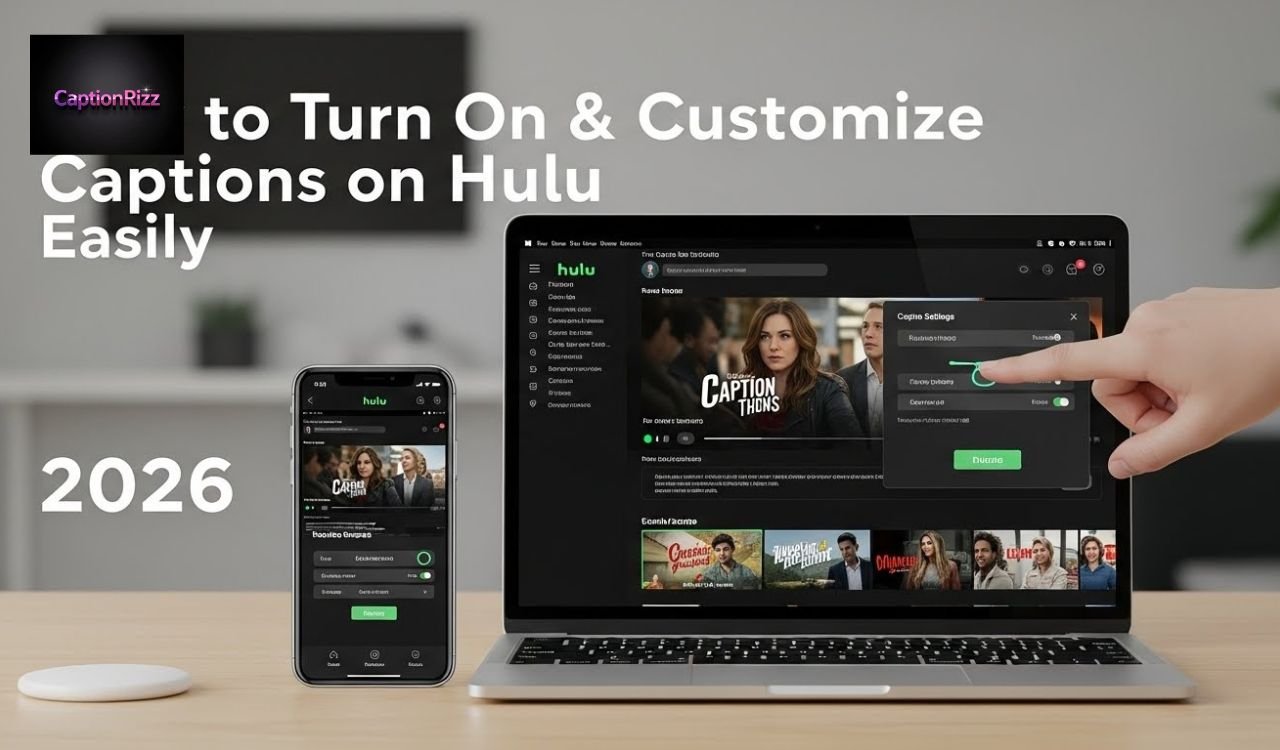
Watching your favorite shows and movies on Hulu is more enjoyable when you can easily follow every dialogue. Captions on Hulu help viewers understand content clearly, whether it’s in a noisy environment or for those who are hearing-impaired. Enabling subtitles and adjusting caption settings ensures you never miss an important scene or line.
Many Hulu users look for ways to customize captions for a better streaming experience. From changing font size and color to syncing captions with playback, Hulu makes it simple to improve accessibility. Learning how to turn on captions on Hulu and tweak settings can make binge-watching more convenient and enjoyable for everyone.
How to Turn On Captions on Hulu (All Devices Guide)
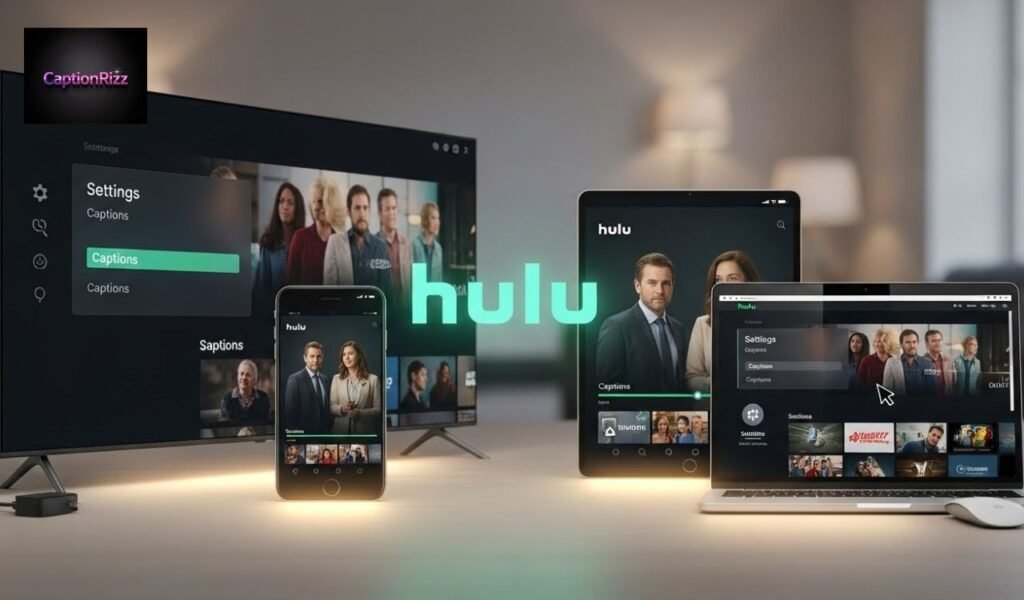
Captions on Hulu enhance your streaming experience by making dialogue clear and accessible for everyone. Whether you are watching on a TV, smartphone, tablet, or computer, enabling captions ensures you never miss any important dialogue, even in noisy environments. Understanding how to turn on captions on Hulu is simple once you follow the step-by-step guide for each device.
How to get captions on Hulu step-by-step
Enabling captions on Hulu varies slightly depending on your device. Here’s a clear guide for beginners and experienced users:
For Smart TVs and Streaming Devices:
- Open the Hulu app and start playing your video.
- Press the Up or Down button on your remote to access the playback menu.
- Select the Captions or Audio & Captions option.
- Choose On and pick your preferred language if available.
For Hulu on Web or Desktop:
- Start streaming your show or movie on Hulu.com.
- Click the speech bubble icon in the player toolbar.
- Select your desired caption style or turn them on.
For Mobile Devices (iOS & Android):
- Open the Hulu app and play your content.
- Tap the screen to show playback controls.
- Select the CC icon and turn on captions.
- Customize font size and background for better visibility.
Closed captions vs subtitles on Hulu explained
Many Hulu users confuse closed captions and subtitles, but there are differences:
| Feature | Closed Captions | Subtitles |
| Purpose | Include spoken dialogue and non-verbal sounds | Only translate spoken dialogue |
| Best For | Hearing-impaired viewers | Viewers watching content in a different language |
| Customization | Font size, color, background available | Limited customization |
| Availability | Can be turned on/off in settings | May be part of the video by default |
Closed captions provide extra details like [music playing], [door creaking], or speaker identification, while subtitles focus on translation or transcription of dialogue. Knowing this difference helps you choose the best viewing option on Hulu.
How to Turn Off Captions on Hulu Instantly
Just as turning captions on is simple, turning them off should be straightforward. Hulu allows users to disable captions on all devices quickly without affecting your viewing experience.
How to turn off closed captions on Hulu
Here’s how you can turn off captions depending on your device:
- Smart TVs/Streaming Devices: Access the Audio & Captions menu while streaming and select Off.
- Web/Desktop: Click the speech bubble icon and select None.
- Mobile Devices: Tap the CC icon in the player and switch captions off.
Turning off captions can also help if you want a cleaner viewing experience without any on-screen text.
Why captions turn on automatically on Hulu
Sometimes, captions appear without your intervention. This happens due to:
- Previous settings: Hulu remembers your last caption settings per profile.
- Device accessibility options: Your TV or streaming device may have default caption settings turned on.
- Content-specific defaults: Some shows or movies have captions automatically enabled for accessibility compliance.
If captions turn on unexpectedly, check both Hulu settings and your device’s accessibility menu to control your viewing preferences.
Hulu Subtitle Settings Explained (Size, Language & Style)
Hulu allows you to fully customize subtitles and captions so that your streaming experience is both comfortable and accessible. By adjusting Hulu subtitle settings, you can control font size, style, color, and language, making it easier to follow your favorite shows.
Whether you are watching in a noisy room or need accessibility support, understanding these settings ensures a perfect viewing experience every time.
How to change captions on Hulu
Changing captions on Hulu is simple and can be done in a few steps depending on your device:
For Smart TVs and Streaming Devices:
- Open the Hulu app and start playing your video.
- Press the Up button or access the Playback menu.
- Select Audio & Captions, then turn captions On or Off.
- Choose your preferred language if multiple options are available.
For Web/Desktop:
- Play your video on Hulu.com.
- Click the speech bubble icon in the player toolbar.
- Toggle captions On/Off or select your preferred style.
For Mobile Devices:
- Open Hulu app and play content.
- Tap the screen to access playback controls.
- Tap the CC icon and select your caption preference.
Hulu subtitles size and language settings
Hulu provides options to customize subtitle appearance and language for optimal readability:
Key Subtitle Options:
- Font Size: Small, Medium, Large, Extra Large
- Font Style: Sans Serif, Serif, Monospace
- Font Color & Background: White, Yellow, Black, Semi-transparent background
- Language Settings: English, Spanish, French, and more depending on content availability
Table: Hulu Subtitle Customization Options
| Setting Type | Options Available | Purpose |
| Font Size | Small, Medium, Large, Extra Large | Adjust readability for comfort |
| Font Style | Sans Serif, Serif, Monospace | Personalize visual preference |
| Font Color | White, Yellow, Black | Improve visibility in different scenes |
| Background | None, Semi-transparent | Increase contrast for easier reading |
| Language | English, Spanish, French, etc. | Match your preferred language |
Customizing these settings ensures subtitles are easy to read without distracting from the visuals, which is especially important for long binge-watching sessions.
Best Hulu subtitles settings for accessibility
For viewers with hearing difficulties or visual impairments, Hulu allows accessibility-focused adjustments:
- Extra Large Font Size: Makes dialogue easier to read.
- High Contrast Background: Improves visibility on bright or dark scenes.
- Clear Font Style: Sans Serif or Monospace fonts reduce strain on the eyes.
- Preferred Language: Set default subtitle language to avoid repeated changes.
- Automatic Captions: Keep captions enabled for all content to ensure accessibility compliance.
Optimizing Hulu subtitles for accessibility not only improves comprehension but also creates an inclusive streaming experience for everyone.
How to Turn Subtitles on Hulu on TV, Roku & PS5
Subtitles on Hulu make watching your favorite movies and TV shows easier to follow, especially in noisy environments or for viewers who need accessibility support. Hulu allows you to turn on subtitles on a variety of devices, including Smart TVs, Roku, and PlayStation 5.
Learning how to enable and customize these subtitles ensures a smooth and enjoyable streaming experience every time.
Turn on subtitles on Hulu on Smart TV
Enabling subtitles on Hulu using a Smart TV is quick and straightforward:
- Open the Hulu app on your Smart TV.
- Start playing your selected video.
- Press the Up or Down button on your remote to access the Playback menu.
- Navigate to Audio & Captions.
- Select Captions On and choose your preferred subtitle language.
- Adjust font size or style if your TV supports customization options.
Tips for Smart TV Users:
- Make sure your Hulu app is updated to the latest version.
- Some older Smart TVs may not support all caption customization options.
- Restarting the app can fix subtitle glitches if they don’t appear.
Hulu subtitle settings on PS5
Hulu on PS5 offers easy access to subtitles for gamers who also love streaming:
- Open the Hulu app on your PS5 console.
- Begin playing your show or movie.
- Press the Options button on your controller.
- Navigate to Audio & Subtitles in the menu.
- Turn Subtitles On and select your language.
- Adjust size and style if available to match your preference.
PS5 users can also save subtitle settings to ensure they appear by default for all content, avoiding repeated adjustments each time you watch.
Fix captions not working on Hulu Roku
Sometimes subtitles may not appear on Roku devices due to app or device issues. Here’s how to fix it:
Step-by-step Troubleshooting:
- Check Subtitle Settings: Go to the Hulu playback menu and ensure captions are turned on.
- Update Hulu App: Make sure your Hulu app is running the latest version.
- Restart Roku Device: Power off, unplug for 30 seconds, then plug in and restart.
- Check Profile Settings: Subtitles may be disabled on a specific Hulu profile. Enable them in your profile settings.
- Clear Cache (if available): Some Roku devices allow clearing cache to fix app-related issues.
Table: Common Hulu Subtitle Issues on Roku and Fixes
| Issue | Possible Cause | Solution |
| Subtitles not showing | Captions disabled in settings | Turn on subtitles in playback menu |
| Wrong language | Default language set incorrectly | Change subtitle language in settings |
| Glitching captions | Outdated app | Update Hulu app |
| No captions after update | Temporary app bug | Restart Roku device |
Following these steps ensures that subtitles on Hulu work perfectly on your Roku device, making your streaming experience seamless.
Hulu Captions Not Working? Fix Common Problems
Captions on Hulu are essential for an enjoyable streaming experience, but sometimes they may not appear or sync properly. Knowing how to troubleshoot Hulu captions ensures you never miss dialogue and improves accessibility.
Common issues like delayed captions, captions not showing, or app glitches can be quickly resolved with the right steps.
Captions not showing or syncing on Hulu
If captions are missing or out of sync, it can be frustrating. Common reasons include app settings, device glitches, or outdated Hulu versions.
Steps to fix captions not showing or syncing:
- Check Caption Settings: Ensure captions are enabled in your Hulu profile and device playback menu.
- Restart App or Device: Sometimes a simple restart fixes syncing issues.
- Update Hulu App: Always use the latest version to avoid bugs.
- Switch Profiles: Check if captions work on another Hulu profile.
- Check Internet Connection: Poor streaming can delay captions.
How to fix delayed or ahead captions on Hulu
Delayed or early captions can disrupt your viewing experience. Here’s how to correct timing issues:
- Restart Playback: Pause and restart your video to resync captions.
- Clear App Cache: On mobile or streaming devices, clearing cache can resolve timing issues.
- Adjust Device Time Settings: Ensure your device clock is correct; some devices sync captions with system time.
- Reinstall Hulu App: A fresh installation can fix persistent sync problems.
Tip: Delayed captions often happen with live streams or when using older devices.
Why captions won’t work on Hulu (real causes)
Understanding the real reasons behind caption problems helps in faster resolution:
- Profile-specific settings: Hulu saves caption preferences per profile. If turned off for one profile, captions won’t appear.
- Device accessibility conflicts: TVs or streaming devices with accessibility options may override Hulu settings.
- Outdated app version: Older Hulu versions may have bugs affecting captions.
- Content restrictions: Some shows may have embedded subtitles that cannot be turned on or off.
- Connectivity issues: Slow or unstable internet can prevent captions from loading properly.
Table: Common Hulu Caption Issues and Solutions
| Issue | Cause | Solution |
| Captions not showing | Disabled in settings | Turn on captions in playback menu |
| Captions out of sync | Streaming lag or app glitch | Restart app, clear cache |
| Captions delay on live streams | Device or network delay | Refresh playback, check internet |
| Captions not customizable | Older device or app version | Update app or device firmware |
By following these steps, you can fix most Hulu caption problems and enjoy a seamless streaming experience with accurate, timely subtitles.
Hulu Captions FAQ
Why are Hulu captions out of sync?
Hulu captions may be out of sync due to outdated app versions, slow internet connections, or temporary playback glitches. Restarting the app or clearing cache usually fixes the issue.
Are Hulu subtitles available in multiple languages?
Yes, Hulu offers subtitles in several languages depending on the show or movie. You can select your preferred language in the Audio & Captions settings on your device.
Do Hulu captions work on Disney Plus bundles?
Hulu captions are available when using Disney Plus bundles that include Hulu streaming. However, captions must be enabled individually within the Hulu app for each profile.
How to turn subtitles on Hulu on TV
Open the Hulu app, start your video, press the Up or Down button on your remote to access Audio & Captions, and toggle subtitles On.
How to turn on subtitles on Hulu on Disney Plus
For Hulu accessed via Disney Plus bundles, play your video in the Hulu section, click the CC icon or Audio & Captions, and select Subtitles On.
How do I turn captions on Hulu?
Click the speech bubble icon in the video player or go to Audio & Captions and toggle captions On. Customize font and language if needed.
Why is Hulu not showing captions?
Captions may not appear if they are disabled in your profile, turned off in device settings, or the app is outdated. Check both Hulu and device accessibility options.
How do I turn on closed captioning?
Closed captions can be enabled via the CC icon in the video player or in the Audio & Captions menu across all Hulu devices.
Where are the settings on Hulu?
Hulu settings for captions, subtitles, and accessibility are found in the Audio & Captions menu during playback or in your Profile Settings for default preferences.

Hey there! I’m Sophie Lane, the creative mind behind CaptionRizz.com — your go-to space for everything witty, flirty, and full of charm. I’ve always believed that the right words can make anyone stand out — whether it’s a catchy Instagram caption, a smooth pick-up line, or the perfect rizz to impress someone special.
At CaptionRizz, my goal is simple: to help you express your mood, your style, and your personality through clever lines that grab attention. From romantic captions to bold one-liners, every piece is designed to make your words unforgettable.
I spend hours crafting original content that blends humor, confidence, and creativity — perfect for anyone who wants to upgrade their caption game or learn the art of modern “rizz talk.”
So whether you’re posting a photo, sliding into DMs, or just looking for that one perfect line — I’ve got you covered.
Let your words shine. Let your vibe speak.Welcome to CaptionRizz — where captions meet confidence. 💬✨