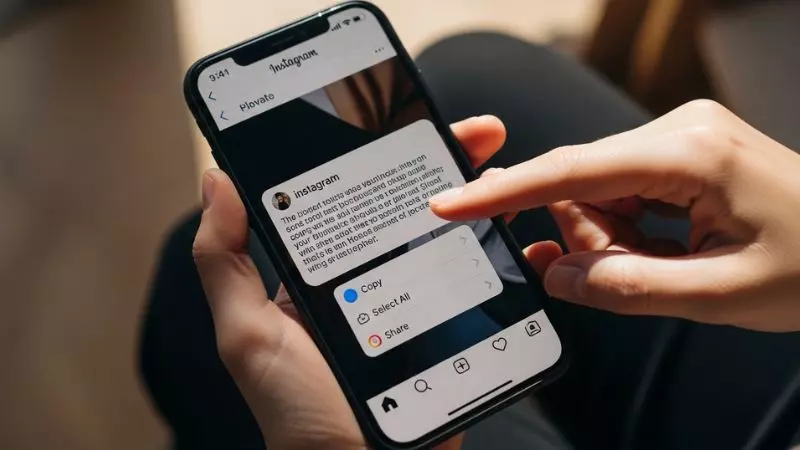
Copying Instagram captions is a simple but very useful skill for content creators, marketers, and social media users who want to reuse or save engaging text. Whether you are collecting viral Instagram captions, aesthetic quotes, or trending post descriptions, knowing the right method helps you quickly copy captions without losing formatting or meaning.
Today, many users search for how to copy Instagram captions on mobile, how to copy text from Instagram posts, and easy Instagram caption copy methods because the app does not directly allow simple text copying in all cases. In this guide, you will learn smart ways using mobile tricks, browser methods, and caption extraction tools to copy Instagram captions easily and efficiently.
How to Copy Instagram Captions

Instagram does not always provide a direct copy option for captions, especially inside the mobile app. That is why many users search for easy ways to copy text from posts, reels, and comments without typing everything manually. The good news is that in 2026, there are several fast and working methods for Android, iPhone, and desktop users.
Whether you want to save funny captions, aesthetic quotes, business hashtags, or reel descriptions, this guide explains every latest method step by step.
Why People Copy Instagram Captions
Users copy Instagram captions for different reasons:
- Reusing viral caption ideas
- Saving motivational quotes
- Copying hashtags for better reach
- Translating text into another language
- Sharing captions on WhatsApp, Facebook, or Pinterest
- Using captions for content inspiration
Many creators also search for:
- how to copy text from instagram reels
- copy instagram captions without app
- instagram caption copy paste method
- how to select text on instagram
- save captions from instagram posts
Fastest Methods to Copy Instagram Captions
| Method | Works On | Difficulty | Best For |
| Copy from Browser | Android, iPhone, PC | Easy | All users |
| Use Google Lens | Android, iPhone | Easy | Reel text copying |
| Notes App Trick | iPhone | Medium | Quick mobile copying |
| Third Party Caption Tools | All devices | Easy | Bulk copying |
| Desktop Instagram | Windows, Mac | Very Easy | Long captions |
Copy Instagram Captions Using Browser
This is the easiest and safest method in 2026.
Steps
- Open Instagram
- Find the post or reel
- Tap the three dots
- Select “Copy Link”
- Open Chrome or Safari
- Paste the link in the browser
- Open the post
- Press and hold the caption text
- Tap “Copy”
This method works because browsers allow text selection more easily than the Instagram app.
Benefits of Browser Method
- No extra app needed
- Safe and secure
- Works on private phones
- Best for long captions
- Easy hashtag copying
Pro Tip
If text selection is not working, request the desktop version of the website from your browser settings.
How to Copy Instagram Caption iPhone
Many iPhone users struggle because Instagram blocks direct text selection inside the app. Fortunately, iOS now includes smarter text recognition features.
Use Safari Browser on iPhone
Follow these steps:
- Open Instagram
- Copy the post link
- Open Safari
- Paste and open the link
- Hold the caption text
- Select “Copy”
This method works on latest iOS versions including iOS 18 and newer.
Use Live Text Feature on iPhone
Apple’s Live Text feature can copy words directly from screenshots.
Steps
- Take a screenshot of the Instagram caption
- Open Photos app
- Tap and hold the text
- Select the text you want
- Press Copy
Why iPhone Users Prefer Live Text
- Faster than typing manually
- Works on reels and stories
- Accurate text detection
- Supports multiple languages
Common iPhone Problems and Fixes
| Problem | Solution |
| Text not selectable | Open link in Safari |
| Live Text not showing | Update iOS |
| Caption hidden | Expand caption first |
| Reel text disappearing | Pause the reel |
How to Copy Caption From Instagram Reels
Instagram Reels are harder because captions disappear while scrolling. However, there are smart methods that work perfectly.
Method 1: Use Browser Version
This is the most reliable method.
Steps
- Open the reel
- Tap share icon
- Copy reel link
- Paste it into Chrome
- Open the reel
- Highlight the caption
- Tap Copy
Method 2: Use Google Lens
Google Lens is one of the best tools for copying text from reels.
Steps
- Pause the reel
- Take a screenshot
- Open Google Photos
- Tap Lens
- Select text
- Copy instantly
Why Google Lens Works Well
- Extracts text accurately
- Works with stylish fonts
- Supports emojis and hashtags
- Useful for hidden reel captions
Reel Caption Copying Tips
- Pause reels before screenshot
- Use HD screenshots for better text detection
- Expand long captions before copying
- Avoid moving video frames
Popular Searches Related to Reels
- how to copy text from instagram reels
- instagram reels caption copy paste
- copy text from reel video
- how to save instagram reel captions
- copy instagram reel description easily
How to Copy Instagram Captions on Phone
Both Android and iPhone users can use multiple methods depending on their device.
Android Users
Android phones usually allow easier text handling.
Best Android Methods
- Chrome browser trick
- Google Lens text extraction
- Split screen copy method
- Clipboard apps
iPhone Users
iPhone users can use:
- Safari browser
- Live Text
- Screenshot text scanner
- Notes app paste method
Universal Phone Method
This method works on almost every smartphone.
Steps
- Copy Instagram post link
- Open mobile browser
- Paste the link
- Select the caption text
- Tap Copy
Quick Comparison
| Device | Best Method | Fastest Option |
| Android | Google Lens | Browser copy |
| iPhone | Live Text | Safari method |
| Samsung | Smart Select | Lens |
| iPad | Safari | Live Text |
Extra Tips for Faster Copying
- Use updated Instagram app
- Keep browser updated
- Avoid private account restrictions
- Use desktop mode if needed
Best Tools to Copy Instagram Captions
Sometimes users prefer tools instead of manual methods.
Popular Caption Copying Tools
| Tool Type | Purpose |
| Caption Extractors | Copy full captions |
| OCR Apps | Extract text from screenshots |
| Browser Extensions | Desktop caption copying |
| Clipboard Managers | Save copied text |
Features to Look For
- No login required
- Fast text extraction
- Mobile compatibility
- Safe browsing
- Hashtag support
Avoid suspicious tools asking for your Instagram password.
SEO Tips for Reusing Instagram Captions
If you are a creator, blogger, or marketer, copied captions can help with content inspiration. But avoid direct duplication.
Smart Ways to Reuse Captions
- Rewrite in your own style
- Add trending hashtags
- Personalize the wording
- Use emotional hooks
- Include call to action
Example
Instead of copying:
“Good vibes only ✨”
Rewrite as:
“Keeping my energy positive and my mindset strong ✨”
This improves originality and engagement.
How to Copy Instagram Caption Android

Copying Instagram captions on Android is much easier in 2026 because Android phones now support advanced text recognition and browser-based text selection. If Instagram does not let you directly copy text inside the app, these working methods will help you instantly copy captions, hashtags, and reel descriptions.
Many Android users search for:
- how to copy instagram captions on phone
- copy instagram text android
- instagram caption copy paste android
- how to select text on instagram
- copy instagram caption without app
Best Method to Copy Instagram Captions on Android
The browser method is the easiest and safest option.
Step by Step Guide
- Open Instagram app
- Find the post or reel
- Tap the three dots
- Select “Copy Link”
- Open Chrome browser
- Paste the link
- Open the Instagram post
- Press and hold the caption text
- Tap “Copy”
This method works on Samsung, Xiaomi, Vivo, Oppo, Realme, Google Pixel, and other Android phones.
Why Android Users Prefer This Method
- No extra application required
- Works with long captions
- Easy hashtag copying
- Faster than manual typing
- Safe and secure
Alternative Android Method Using Google Lens
Google Lens can copy text directly from screenshots.
Steps
- Take screenshot of the caption
- Open Google Photos
- Tap Lens icon
- Highlight text
- Copy instantly
Best Situations for Google Lens
| Use Case | Why It Helps |
| Reel captions | Text disappears quickly |
| Stylish fonts | Better text detection |
| Long captions | Faster extraction |
| Hidden text | OCR support |
Pro Tips for Android Users
- Update Chrome browser regularly
- Use desktop mode if text is not selectable
- Expand captions before copying
- Pause reels before screenshot
Caption Copy Paste
Caption copy paste methods are useful for creators, influencers, bloggers, and social media managers who want to reuse or save Instagram text quickly.
What Is Caption Copy Paste?
Caption copy paste means copying Instagram text from posts, reels, or comments and pasting it somewhere else like:
- Notes app
- Caption generator tools
Fastest Caption Copy Paste Methods
| Method | Speed | Works On |
| Browser Copy | Very Fast | Android, iPhone, PC |
| Google Lens | Fast | Android, iPhone |
| Live Text | Fast | iPhone |
| Desktop Instagram | Very Easy | Windows, Mac |
How to Copy and Paste Instagram Captions
Method
- Copy Instagram post link
- Open it in browser
- Select caption text
- Tap Copy
- Paste anywhere you want
Benefits of Caption Copy Paste
- Saves time
- Helps content creators
- Makes hashtag reuse easier
- Useful for social media planning
- Great for inspiration collection
Common Copy Paste Problems
| Problem | Fix |
| Text not selectable | Use browser |
| Reel moving too fast | Pause video |
| Caption hidden | Tap “more” first |
| Copy option missing | Use desktop mode |
Instagram Caption Copy by Link
One of the most effective ways to copy Instagram captions is by using the post link. This method works on almost every device in 2026.
Why Copy by Link Works Better
Instagram blocks direct text selection inside the app, but browser versions allow easier text copying.
Steps to Copy Instagram Caption by Link
- Open Instagram
- Tap the three dots on the post
- Choose “Copy Link”
- Open Chrome or Safari
- Paste the link
- Open the post in browser
- Select caption text
- Tap Copy
Advantages of Link Method
- No login required sometimes
- Works on reels and posts
- Faster than screenshot methods
- Helps copy hashtags accurately
Important Tip
If text still cannot be selected, request the desktop site from browser settings.
How to Copy Text From Instagram Reels
Instagram Reels often contain trending captions, funny dialogues, and viral hashtags that users want to save or share. Since reels autoplay quickly, copying text can be difficult without the right method.
Best Ways to Copy Reel Text
Method 1: Browser Copy
- Copy reel link
- Open in Chrome
- Select text
- Copy caption instantly
Method 2: Google Lens
- Pause reel
- Take screenshot
- Open Lens
- Extract text
Method 3: Desktop Instagram
Desktop Instagram allows easier text selection.
Why Reel Text Copying Is Popular
People usually copy reel text for:
- Viral captions
- Motivational quotes
- Trending hashtags
- Video scripts
- Meme content
Reel Copying Tips
| Tip | Benefit |
| Pause the reel | Better screenshot |
| Expand caption | Full text visibility |
| Use HD screenshot | Better OCR accuracy |
| Use browser version | Easier text selection |
How to Copy Text From Instagram Reels on iPhone
iPhone users can use Apple’s latest Live Text feature to instantly copy reel captions and on-screen text.
Best iPhone Method for Reel Text
Using Live Text
- Pause the reel
- Take screenshot
- Open Photos app
- Tap and hold text
- Select Copy
This feature works very smoothly on newer iPhones and latest iOS versions.
Alternative Safari Method
- Copy reel link
- Open Safari
- Paste link
- Select caption text
- Copy directly
Why iPhone Users Like Live Text
- Very accurate
- Works on videos and screenshots
- Supports emojis and hashtags
- Fast and simple
Common iPhone Issues and Solutions
| Issue | Solution |
| Live Text missing | Update iOS |
| Text not detecting | Use clearer screenshot |
| Reel moving quickly | Pause before screenshot |
| Caption hidden | Expand text first |
How to Copy Instagram Captions Text
Instagram captions often include trendy quotes, hashtags, emojis, and creative text styles that users want to save for later use. Unfortunately, Instagram still limits direct text selection inside the mobile app, which is why many users search for easy ways to copy Instagram captions text without typing manually.
The good news is that there are several working methods in 2026 that make the process simple on Android, iPhone, and desktop devices.
Easiest Way to Copy Instagram Caption Text
The browser method remains the fastest option for most users.
Follow These Steps
- Open Instagram app
- Find the post you want
- Tap the three dots in the top corner
- Select “Copy Link”
- Open Chrome or Safari
- Paste the copied link
- Open the Instagram post in browser
- Press and hold the caption text
- Tap “Copy”
This method works perfectly for copying long Instagram captions, hashtags, aesthetic bios, and motivational quotes.
Why Browser Copy Works Better
| Feature | Benefit |
| Text selection support | Easier copying |
| No extra app needed | Safe method |
| Better for long captions | Saves time |
| Works on reels and posts | Multi purpose use |
Useful Tips
- Expand the full caption before copying
- Use desktop mode if text selection fails
- Keep your browser updated
- Avoid fake caption copy apps asking for login details
Many users also use this method for copying Instagram captions with emojis and hashtags accurately.
How to Copy Instagram Captions on iPhone
iPhone users often struggle because Instagram blocks direct text selection inside the app. However, Apple’s latest iOS features now make caption copying much easier.
Best Method Using Safari
Safari gives better control over text selection compared to the Instagram app.
Steps for iPhone Users
- Open Instagram
- Tap the three dots on the post
- Choose “Copy Link”
- Open Safari browser
- Paste the link
- Open the post
- Hold the caption text
- Tap Copy
This method works well for copying captions from reels, posts, and comments on iPhone.
Use Live Text Feature on iPhone
Apple Live Text is one of the best features for extracting Instagram text from screenshots.
Steps
- Take screenshot of the caption
- Open Photos app
- Press and hold the text
- Select the required words
- Tap Copy
Why Live Text Is Popular
- Works instantly
- Copies emojis and hashtags
- Supports multiple languages
- Great for reel captions and story text
Common iPhone Caption Copy Problems
| Problem | Solution |
| Text not selectable | Use Safari browser |
| Caption hidden | Tap “more” first |
| Live Text unavailable | Update iOS |
| Reel moving fast | Pause before screenshot |
This method is especially useful for users searching how to copy Instagram captions on iPhone without third party apps.
How to Copy Instagram Captions of Other People
Many users want to save captions from influencers, creators, brands, or public pages for inspiration, reposting ideas, or hashtag research.
Can You Copy Other People’s Instagram Captions?
Yes, if the account is public or you already follow the private account, you can copy the caption using browser or screenshot methods.
Best Way to Copy Someone Else’s Instagram Caption
Browser Link Method
- Open the post
- Tap the three dots
- Select “Copy Link”
- Open browser
- Paste link
- Select caption text
- Copy instantly
Alternative Method Using Screenshot
This method is useful when text selection is blocked.
Steps
- Screenshot the Instagram post
- Open Google Lens or Live Text
- Highlight the caption
- Copy the text
Why Users Copy Other People’s Captions
People usually save captions for:
- Content inspiration
- Caption ideas for Instagram posts
- Trending hashtags
- Motivational quotes
- Business marketing research
Important Reminder
Copying captions for inspiration is fine, but avoid reposting someone else’s exact content repeatedly because original content performs better in search engines and social media algorithms.
Smart Content Practice
Instead of directly copying:
“Living my best life ✨”
Try rewriting naturally:
“Enjoying every moment and creating memories that matter ✨”
This improves uniqueness and audience engagement.
How to Copy Paste Instagram Captions
Instagram caption copy paste methods are useful for creators, marketers, students, and casual users who want to quickly move text between apps.
What Does Instagram Caption Copy Paste Mean?
It simply means:
- Copying a caption from Instagram
- Pasting it into another platform or app
Users commonly paste captions into:
- Notes app
- Caption generators
- Social media planners
Fastest Copy Paste Method
| Method | Best For |
| Browser copy | Long captions |
| Live Text | iPhone users |
| Google Lens | Reel captions |
| Desktop Instagram | Easy text selection |
How to Copy and Paste Captions Easily
Steps
- Copy Instagram post link
- Open the link in browser
- Select the caption text
- Tap Copy
- Open another app
- Press Paste
Benefits of Caption Copy Paste
- Saves manual typing time
- Helps manage social media content
- Useful for hashtag collection
- Easy sharing across platforms
- Better for content planning
Common Mistakes to Avoid
| Mistake | Better Option |
| Using unsafe apps | Use browser method |
| Copying incomplete captions | Expand full text |
| Ignoring formatting | Check emojis and spacing |
| Reposting duplicate text | Rewrite naturally |
Pro Tips for Better Results
- Use Chrome or Safari for smoother copying
- Always expand hidden captions
- Use screenshot OCR tools if text selection fails
- Save copied captions inside Notes app for later use
How to Copy Prompt From Instagram Captions
Many Instagram users now share AI prompts, ChatGPT prompts, editing prompts, Midjourney prompts, and viral content ideas directly inside captions. Since Instagram does not always allow direct text selection in the app, users often look for the fastest way to copy prompt from Instagram captions without typing everything manually.
Whether you want to save an AI image prompt, content writing prompt, or reel editing prompt, these methods work perfectly in 2026.
Best Way to Copy Prompt From Instagram Captions
The browser method is still the easiest and most reliable option.
Step by Step Method
- Open Instagram
- Find the post containing the prompt
- Tap the three dots
- Select “Copy Link”
- Open Chrome or Safari
- Paste the Instagram link
- Open the post in browser
- Press and hold the caption text
- Select the full prompt
- Tap Copy
This method works well for:
- AI prompts
- ChatGPT prompts
- Reel editing prompts
- Canva prompts
- Caption templates
- Viral content formulas
Why People Copy Instagram Prompts
| Purpose | Example |
| AI image generation | Midjourney prompts |
| Content creation | Viral caption ideas |
| Marketing | Sales copy templates |
| Video editing | Reel hook prompts |
| Writing inspiration | Storytelling formats |
Alternative Method Using Screenshot
If text selection does not work:
- Take screenshot of the caption
- Open Google Lens or iPhone Live Text
- Highlight the text
- Copy the prompt instantly
Pro Tips
- Expand the full caption before copying
- Use desktop mode in browser if needed
- Save copied prompts inside Notes app
- Rewrite prompts slightly for unique results
How to Copy Someone’s Instagram Captions
Instagram captions often contain funny quotes, emotional lines, aesthetic text, or useful hashtags that users want to save for inspiration. Learning how to copy someone’s Instagram captions can help creators, marketers, and casual users collect ideas quickly.
Can You Copy Someone Else’s Instagram Caption?
Yes, you can copy captions from public accounts or accounts you already follow. The easiest way is through browser text selection or screenshot text extraction.
Fastest Method to Copy Someone’s Caption
Browser Copy Method
- Open Instagram post
- Tap the three dots
- Select “Copy Link”
- Open the link in browser
- Hold the caption text
- Tap Copy
This method is useful for copying:
- Instagram bio captions
- Funny captions
- Hashtags
- Motivational quotes
- Fashion captions
- Business captions
Another Easy Method
Use screenshot text extraction.
Steps
- Screenshot the caption
- Open Google Lens or Apple Live Text
- Select the caption text
- Copy instantly
Why Users Save Other People’s Captions
People usually copy captions for:
- Content inspiration
- Social media ideas
- Caption formatting
- Trending hashtags
- Creative writing ideas
Important Content Tip
Avoid reposting captions exactly as they are. Instagram and search engines prefer original content. A better strategy is to rewrite captions naturally in your own tone.
Example
Instead of copying:
“Dream big and stay humble ✨”
Rewrite it like:
“Keep your goals high while staying grounded ✨”
This makes your content feel more authentic and engaging.
How to Copy Links From Instagram Captions
Instagram captions sometimes include important website URLs, YouTube links, affiliate links, or product references. Since clickable links inside captions are limited, many users search for easy ways to copy links from Instagram captions.
Can You Copy Links From Instagram Captions?
Yes, but the method depends on whether the link is clickable or plain text.
Best Method to Copy Instagram Caption Links
Using Browser Version
- Open Instagram
- Find the post containing the link
- Copy the post URL
- Open it in Chrome or Safari
- Highlight the link text inside caption
- Tap Copy
This method works best for:
- Website links
- Telegram links
- YouTube URLs
- Affiliate links
- Blog links
- Product pages
Screenshot Method for Hidden Links
If the link is not selectable:
- Take screenshot
- Open Google Lens
- Detect URL text
- Copy the link
Common Problems While Copying Links
| Problem | Solution |
| Link not clickable | Use browser version |
| Text selection blocked | Enable desktop mode |
| Reel caption disappearing | Pause the reel |
| Long URL incomplete | Expand full caption |
Best Practices After Copying Links
- Check URL carefully before opening
- Avoid suspicious or spammy links
- Save useful links in Notes app
- Shorten long URLs if sharing publicly
Helpful Tip for Creators
If you share links in captions often, keep them short and easy to read because Instagram reduces visibility of long URLs inside captions.
Frequently Asked Questions
How to Copy Instagram Captions on Android Phones?
You can copy Instagram captions on Android by opening the post link in Chrome browser and selecting the caption text directly. This method works well for copying hashtags, reel captions, and long Instagram text.
How to Copy Instagram Captions on iPhone Easily?
iPhone users can copy Instagram captions by using Safari browser or the Live Text feature from screenshots. It is one of the fastest ways to copy Instagram captions on iOS devices.
How to Copy Caption From Instagram Reels?
To copy caption from Instagram reels, copy the reel link and open it in a browser where text selection becomes easier. You can also use Google Lens to extract reel text instantly.
Can You Copy Someone Else’s Instagram Captions?
Yes, you can copy someone else’s Instagram captions from public accounts or accounts you already follow using browser text selection or screenshot text extraction tools.
How to Copy Instagram Captions Without Third Party Apps?
The safest way is to use Chrome or Safari browser after copying the Instagram post link. This method avoids unsafe apps and works smoothly on most devices.
How to Copy Paste Instagram Captions Quickly?
Open the Instagram post in a browser, select the caption text, tap copy, and paste it into Notes, WhatsApp, or any social media platform you want.
How to Copy Text From Instagram Reels on iPhone?
Pause the reel, take a screenshot, and use Apple Live Text to highlight and copy the caption or on screen text directly from the image.
Why Can’t I Copy Instagram Caption Text Directly?
Instagram limits direct text selection inside the mobile app for better content protection, but browser methods and text recognition tools still allow easy caption copying.
Final Words
Copying Instagram captions has become much easier with the latest browser methods, screenshot text recognition, and smart mobile features. Whether you use Android, iPhone, or desktop, there are several safe ways to save captions, hashtags, and reel text without typing manually.
The best method for How to Copy Instagram Captions is usually opening the post link inside Chrome or Safari browser because it allows quick text selection. Users can also use Google Lens or Apple Live Text for reels and screenshot-based copying. These updated techniques help creators, marketers, and everyday users save time while copying Instagram captions quickly and safely.

Hey there! I’m Sophie Lane, the creative mind behind CaptionRizz.com — your go-to space for everything witty, flirty, and full of charm. I’ve always believed that the right words can make anyone stand out — whether it’s a catchy Instagram caption, a smooth pick-up line, or the perfect rizz to impress someone special.
At CaptionRizz, my goal is simple: to help you express your mood, your style, and your personality through clever lines that grab attention. From romantic captions to bold one-liners, every piece is designed to make your words unforgettable.
I spend hours crafting original content that blends humor, confidence, and creativity — perfect for anyone who wants to upgrade their caption game or learn the art of modern “rizz talk.”
So whether you’re posting a photo, sliding into DMs, or just looking for that one perfect line — I’ve got you covered.
Let your words shine. Let your vibe speak.Welcome to CaptionRizz — where captions meet confidence. 💬✨