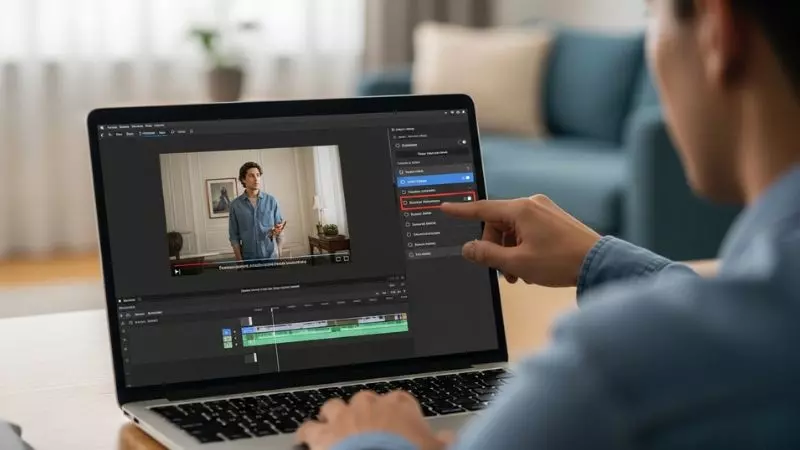
Many users search for easy ways to remove subtitles, closed captions, or embedded text from videos because captions can block important visuals and reduce video quality.
Whether you are editing TikTok clips, Instagram reels, YouTube videos, or downloaded movies, learning how to remove captions from video can help create a cleaner and more professional viewing experience. Today, several AI video editing tools and mobile apps make caption removal faster than ever.
If you want to remove hardcoded subtitles from videos without losing quality, there are multiple working methods available for Android, iPhone, Windows, and Mac users.
From online subtitle remover tools to advanced video editors with AI object removal features, this guide covers the latest techniques to delete captions from videos easily while maintaining smooth playback and high resolution.
How to Remove Captions From Video

Captions can improve accessibility, but sometimes they block important visuals, reduce video quality, or make content look unprofessional. Many users want to remove subtitles from videos before reposting clips on TikTok, Instagram Reels, YouTube Shorts, or professional presentations.
Whether the captions are hardcoded subtitles or editable closed captions, there are now several easy ways to remove captions from video without damaging video quality.
In 2026, AI powered video editing tools have made subtitle removal much faster and cleaner. You can now delete captions from videos using mobile apps, online subtitle remover tools, or professional editing software on PC and Mac.
The method you choose mainly depends on whether the captions are embedded permanently or added as a separate subtitle layer.
Types of Video Captions
Before removing captions, it is important to understand the difference between subtitle types.
| Caption Type | Can Be Removed Easily? | Best Removal Method |
| Closed Captions | Yes | Turn off subtitle track |
| Hardcoded Subtitles | Difficult | Crop or AI remover |
| Auto Captions | Yes | Delete caption layer |
| Burned In Text | Medium | Blur or object remover |
Best Ways to Remove Captions From Video
There are several working methods available today:
- Crop the caption area
- Use AI subtitle remover tools
- Delete auto caption layer
- Blur subtitle section
- Replace subtitles with background fill
- Remove captions using CapCut or Canva
Pro Tips Before Removing Captions
- Always keep a backup copy of the original video
- Export in high resolution to avoid quality loss
- Use AI fill tools for cleaner results
- Check if captions are editable before cropping
How to Remove Captions From Video Online
Online subtitle remover tools are one of the easiest options for beginners because they work directly in your browser without downloading heavy software. These tools are useful for removing captions from TikTok videos, Instagram reels, YouTube clips, and downloaded movies.
Most modern online editors now include AI object remover features that automatically detect and erase subtitles from videos.
Steps to Remove Captions From Video Online
- Upload your video file
- Open subtitle or crop tool
- Select the caption area
- Remove or blur subtitles
- Preview the video
- Export in HD quality
Features of Online Caption Remover Tools
| Feature | Benefit |
| AI subtitle detection | Faster editing |
| Browser based editing | No software installation |
| HD export support | Better quality |
| Mobile compatibility | Easy editing anywhere |
Why Users Prefer Online Video Editors
- Beginner friendly interface
- Works on low end devices
- Fast processing
- No technical skills needed
- Easy drag and drop editing
Best Situations for Online Caption Removal
Online tools work best for:
- Social media clips
- Short videos
- Reels and Shorts
- Quick edits
- Temporary projects
Common Problems While Removing Captions Online
| Problem | Solution |
| Blurry output | Export in 1080p |
| Watermark issue | Use free tools carefully |
| Caption still visible | Use crop and blur together |
| Slow processing | Compress large video files |
How to Remove Captions From Video Online Free
Many users search for free subtitle remover tools because they do not want expensive editing software. Fortunately, several free online video editors now allow users to remove captions without advanced editing knowledge.
Best Free Methods to Remove Captions
Crop Method
This is the fastest free method.
- Upload the video
- Crop the bottom caption area
- Save the edited version
Blur Method
If cropping removes important visuals:
- Apply blur over subtitles
- Keep the rest of the frame clean
AI Object Remover
Some free AI tools can erase subtitles automatically by filling the background naturally.
Free Caption Remover Comparison
| Method | Quality | Difficulty |
| Crop Tool | Good | Easy |
| Blur Tool | Medium | Easy |
| AI Remover | High | Medium |
| Background Fill | Very High | Advanced |
Important Free Tool Tips
- Check watermark limitations
- Export videos before closing browser
- Use MP4 format for compatibility
- Avoid low quality compression settings
Best Long Tail Searches Naturally Used by Users
Many creators now search for:
- remove subtitles from video online free
- free AI subtitle remover
- delete captions from TikTok video
- online video text remover
- remove hardcoded subtitles free
How to Remove Captions From Video in CapCut
CapCut is one of the most popular video editing apps for removing captions from reels, TikTok videos, and YouTube Shorts. It offers both manual editing and AI based subtitle removal features.
Remove Auto Captions in CapCut
If captions were created inside CapCut:
Steps
- Open CapCut project
- Tap the caption track
- Select the subtitle layer
- Tap Delete
- Export the clean video
This method works instantly because auto captions are editable layers.
Remove Hardcoded Subtitles in CapCut
If captions are permanently embedded:
Method 1: Crop Tool
- Select the video
- Open Crop option
- Remove subtitle area carefully
Method 2: Overlay Technique
- Duplicate the video
- Blur the subtitle section
- Blend the overlay smoothly
AI Tools in Latest CapCut Version
The latest CapCut updates now include:
| Tool | Purpose |
| AI Retouch | Remove unwanted objects |
| Background Fill | Hide subtitle areas |
| Smart Blur | Smooth subtitle hiding |
| Auto Object Removal | Cleaner editing |
Why Creators Prefer CapCut
- Mobile friendly
- Fast exporting
- AI editing features
- Best for TikTok and Reels
- Easy subtitle management
Helpful CapCut Editing Tips
- Use 1080p export settings
- Avoid over cropping vertical videos
- Preview subtitles frame by frame
- Keep aspect ratio optimized for social media
How to Remove Captions From Video in Canva

Canva is now widely used for social media editing, presentations, and marketing videos. It also allows users to remove editable captions and redesign video layouts easily.
Remove Editable Captions in Canva
If subtitles were added inside Canva:
Steps
- Open Canva video project
- Click on subtitle text
- Press Delete
- Preview the video
- Download the updated version
How to Hide Hardcoded Subtitles in Canva
Canva cannot fully erase embedded captions like advanced AI editors, but you can still hide them creatively.
Best Canva Methods
- Crop video frame
- Add overlay elements
- Use blur shapes
- Cover captions with graphics
- Resize video positioning
Canva Tools Useful for Subtitle Removal
| Canva Feature | Usage |
| Crop Tool | Remove lower subtitle area |
| Blur Elements | Hide captions softly |
| Background Shapes | Cover subtitle section |
| Video Resize | Adjust framing |
Why Canva Is Good for Beginners
- Very simple interface
- Cloud based editing
- Works on browser and mobile
- Fast social media exports
- No professional editing experience needed
Canva Editing Tips
- Use transparent overlays naturally
- Match background colors carefully
- Keep text hidden without affecting visuals
- Export videos in MP4 HD format
Remove Subtitles From Video for Free
Many users want to remove subtitles from videos for free before uploading clips to TikTok, YouTube Shorts, Instagram Reels, or WhatsApp status. Free subtitle remover tools are now much more advanced and can erase captions without needing expensive editing software. Whether the subtitles are hardcoded or added manually, there are several easy methods available in 2026.
The simplest free method is cropping the subtitle area, but AI video editing tools now provide cleaner results by removing captions while keeping the background natural. These tools are especially useful for social media creators who want professional looking videos without visible text overlays.
Best Free Ways to Remove Subtitles
| Method | Difficulty | Quality |
| Crop Video | Easy | Good |
| Blur Subtitle Area | Easy | Medium |
| AI Subtitle Remover | Medium | High |
| Background Fill Tool | Medium | Very High |
Free Methods That Work Best
- Use browser based AI subtitle remover
- Crop lower subtitle section
- Apply blur to hide captions
- Delete editable subtitle layers
- Use object removal tools
Important Tips Before Editing
- Save the original video first
- Export in HD resolution
- Avoid over cropping important visuals
- Use MP4 format for compatibility
Why Users Prefer Free Subtitle Removal Tools
- No software installation required
- Beginner friendly editing
- Fast processing
- Works on mobile and desktop
- Good for short social media clips
How to Remove Captions From Video in WhatsApp
WhatsApp videos often include auto captions, subtitles, or text overlays shared from TikTok, Instagram, or YouTube. Many users want to remove captions before reposting videos as WhatsApp status updates or sharing them privately.
Can You Remove Captions Directly in WhatsApp?
No, WhatsApp itself does not provide a subtitle removal tool. You must edit the video before uploading it to WhatsApp.
Easiest WhatsApp Caption Removal Method
Using Crop Tool
- Open a video editing app
- Import the WhatsApp video
- Use crop feature
- Remove subtitle area carefully
- Export the edited video
Best Apps for WhatsApp Caption Removal
| App Type | Best Use |
| CapCut | AI subtitle removal |
| Canva | Basic text hiding |
| VN Editor | Crop and blur |
| InShot | Fast mobile editing |
Alternative Blur Method
If cropping cuts important content:
- Add blur over subtitles
- Use overlay shapes
- Match the video background naturally
Why People Remove Captions for WhatsApp
Users often remove subtitles to:
- Create cleaner status videos
- Reuse viral clips
- Hide unwanted text
- Improve video appearance
- Share videos professionally
Pro Editing Tips
- Keep vertical aspect ratio for status videos
- Use 720p or 1080p export
- Preview the video before sharing
- Avoid low quality compression
Remove Subtitles From Video Online Free AI
AI subtitle remover tools are one of the biggest video editing trends in 2026. These smart tools automatically detect subtitles, remove text overlays, and rebuild the background naturally without heavy manual editing.
Many creators now prefer AI based subtitle removal because it saves time and produces cleaner results compared to simple cropping.
How AI Subtitle Removers Work
AI tools scan video frames and identify:
- Hardcoded subtitles
- Burned in captions
- Text overlays
- Watermarks
- Lower third text
The tool then fills the removed area using background reconstruction technology.
Steps to Remove Subtitles Using AI
- Upload the video online
- Select AI object remover
- Highlight subtitle area
- Start automatic removal
- Preview edited video
- Export final version
Benefits of AI Subtitle Removal
| Feature | Advantage |
| Automatic text detection | Faster editing |
| Background reconstruction | Cleaner visuals |
| HD export support | Better quality |
| Browser based editing | No installation |
Why AI Tools Are Popular
- Saves editing time
- Beginner friendly
- Better than manual cropping
- Supports social media videos
- Works on mobile devices
Common AI Editing Mistakes
| Mistake | Better Option |
| Using low quality videos | Upload HD files |
| Removing large subtitle areas | Use selective removal |
| Over editing frames | Preview carefully |
| Ignoring export settings | Use HD output |
How to Remove Captions From Video on Facebook

Facebook videos often include auto generated captions, embedded subtitles, or imported text overlays. Some captions can be turned off directly, while others require editing before reposting or downloading.
Remove Facebook Auto Captions
If captions were automatically generated on Facebook:
Steps
- Open Facebook video
- Tap settings icon
- Turn captions off
- Save preferences
This works only for optional subtitle tracks.
Remove Hardcoded Facebook Captions
If captions are permanently embedded:
- Download the video
- Open it in a video editor
- Crop or blur subtitle area
- Export clean version
Best Methods for Facebook Videos
| Method | Best For |
| Turn off captions | Auto subtitle tracks |
| Crop tool | Bottom subtitles |
| Blur overlay | Fixed text areas |
| AI remover | Burned in captions |
Why Users Remove Facebook Captions
People commonly remove captions to:
- Reupload content professionally
- Improve visual quality
- Create ad creatives
- Repurpose short clips
- Remove distracting text
Helpful Facebook Editing Tips
- Check video rights before reposting
- Use landscape cropping carefully
- Keep subtitles hidden naturally
- Export optimized Facebook resolution
How to Remove Captions From Video on Android
Android phones now include powerful video editing apps that make subtitle removal very easy. Users can crop captions, blur subtitles, or use AI object remover tools directly from mobile devices.
Best Android Apps for Caption Removal
| App | Best Feature |
| CapCut | AI subtitle remover |
| InShot | Easy cropping |
| VN Editor | Blur overlays |
| KineMaster | Advanced editing |
Remove Captions Using Android Apps
Simple Crop Method
- Open editing app
- Import video
- Select crop option
- Remove subtitle area
- Export video
Remove Captions Using AI Tools
Modern Android editors now support:
- Smart object removal
- Background fill
- AI blur effects
- Auto subtitle detection
Why Android Users Prefer Mobile Editing
- Fast editing anywhere
- No computer needed
- Easy social media exports
- Beginner friendly interface
- Instant sharing support
Android Subtitle Removal Tips
- Use high quality source videos
- Export in MP4 format
- Avoid excessive cropping
- Preview every frame before saving
Common Android Problems and Solutions
| Problem | Solution |
| Video quality loss | Export in HD |
| Captions still visible | Use blur and crop together |
| Lag during editing | Clear device storage |
| App crashing | Update editing app |
How to Remove Captions From Video TikTok
TikTok videos often include auto captions, hardcoded subtitles, or text overlays that users want to remove before reposting content on Instagram Reels, YouTube Shorts, or WhatsApp status. In 2026, removing TikTok captions has become much easier with AI editing tools and mobile video editors.
The method depends on whether the captions are editable TikTok auto captions or permanently embedded subtitles. Editable captions can be deleted instantly, while hardcoded captions require cropping, blur effects, or AI object removal.
Remove TikTok Auto Captions
If captions were added using TikTok’s built in auto caption feature:
Steps
- Open TikTok draft video
- Tap captions option
- Select subtitle text
- Delete or disable captions
- Save the updated video
Remove Hardcoded TikTok Captions
If subtitles are already burned into the video:
- Use crop tool to remove bottom text
- Apply blur effect over subtitles
- Use AI subtitle remover tools
- Cover captions using overlays
Best TikTok Caption Removal Methods
| Method | Best For |
| Disable auto captions | Editable subtitles |
| Crop video | Lower screen captions |
| AI object remover | Burned in subtitles |
| Blur overlay | Fast mobile editing |
Why Users Remove TikTok Captions
People usually remove captions to:
- Repost videos on other platforms
- Create cleaner edits
- Hide distracting subtitles
- Improve professional appearance
- Customize video layouts
Helpful TikTok Editing Tips
- Keep vertical video ratio optimized
- Export in 1080p quality
- Avoid cropping important visuals
- Preview every frame before saving
How to Remove Captions From Video in Premiere Pro
Adobe Premiere Pro is one of the most advanced video editing tools for removing captions, subtitles, and text overlays professionally. It allows users to delete editable captions or hide hardcoded subtitles with precision editing.
Remove Editable Captions in Premiere Pro
If captions were added separately:
Steps
- Open Premiere Pro project
- Locate caption track on timeline
- Select subtitle layer
- Press Delete
- Export the clean video
This is the easiest way to remove closed captions and subtitle tracks.
Remove Hardcoded Captions in Premiere Pro
If captions are permanently embedded:
Method 1: Crop Tool
- Open Effects panel
- Add Crop effect
- Remove subtitle area carefully
Method 2: Blur and Mask
- Apply Gaussian Blur
- Create mask around subtitles
- Blend blur naturally
Method 3: Content Aware Fill
Latest Premiere Pro versions now support AI assisted object removal for cleaner subtitle editing.
Premiere Pro Features for Subtitle Removal
| Tool | Purpose |
| Caption Track | Delete subtitles directly |
| Crop Effect | Remove lower text |
| Blur Mask | Hide captions |
| Content Aware Fill | AI subtitle cleanup |
Why Editors Prefer Premiere Pro
- Professional quality editing
- Advanced subtitle management
- AI assisted tools
- High resolution exports
- Precise frame control
Pro Premiere Pro Tips
- Keep original project backups
- Use adjustment layers for blur effects
- Export using H.264 for social media
- Preview subtitles frame by frame
How to Remove Captions From Video in Clipchamp

Clipchamp is a beginner friendly online video editor owned by Microsoft that allows users to remove subtitles, captions, and text overlays easily. It works directly in the browser and supports quick social media editing.
Remove Editable Captions in Clipchamp
If captions were added inside Clipchamp:
Steps
- Open your Clipchamp project
- Select the subtitle layer
- Press Delete
- Preview the video
- Export final version
Remove Hardcoded Subtitles in Clipchamp
For embedded captions:
- Use crop feature
- Blur subtitle section
- Add overlays to cover text
- Resize video framing
Best Clipchamp Tools for Caption Removal
| Feature | Benefit |
| Crop Tool | Remove subtitle area |
| Blur Effects | Hide text smoothly |
| Text Layer Editing | Delete captions instantly |
| Browser Editing | No installation needed |
Why Users Like Clipchamp
- Simple interface
- Fast browser based editing
- Beginner friendly controls
- Easy exports for TikTok and YouTube
- Cloud based project saving
Common Clipchamp Problems
| Problem | Solution |
| Quality loss | Export in 1080p |
| Subtitle still visible | Use crop with blur |
| Slow rendering | Compress large videos |
| Text layer locked | Unlock timeline first |
Helpful Editing Tips
- Use minimal cropping
- Preview mobile aspect ratio
- Keep subtitles hidden naturally
- Save project before exporting
How to Use CapCut to Remove Captions From Video
CapCut is one of the most powerful mobile video editing apps for subtitle removal because it includes AI editing tools, auto caption management, and object removal features. Many creators use CapCut to clean TikTok videos, Instagram reels, and YouTube Shorts quickly.
Remove Auto Captions in CapCut
If captions were generated inside CapCut:
Steps
- Open CapCut project
- Tap subtitle track
- Select captions
- Press Delete
- Export clean video
Remove Hardcoded Captions in CapCut
If subtitles are permanently embedded:
Method 1: Crop Tool
- Import the video
- Tap Edit
- Choose Crop
- Remove subtitle area carefully
Method 2: AI Object Removal
Latest CapCut updates include AI subtitle removal tools.
Steps
- Select AI tools
- Highlight subtitle area
- Apply object remover
- Preview cleaned frames
- Export video
Method 3: Blur Overlay
If AI removal is unavailable:
- Add blur effect
- Mask subtitle section
- Blend smoothly into background
CapCut Features for Subtitle Removal
| Tool | Function |
| Auto Caption Editor | Delete captions |
| AI Object Remover | Remove subtitles |
| Crop Tool | Hide bottom text |
| Blur Effects | Cover subtitles softly |
Why CapCut Is Popular
- Free mobile editing
- AI powered tools
- Easy social media exports
- Fast rendering
- Beginner friendly interface
Best CapCut Editing Tips
- Use high resolution videos
- Keep vertical framing balanced
- Avoid over blurring captions
- Export in HD for TikTok and Reels
Frequently Asked Questions
How to Remove Captions From Video Without Losing Quality?
You can remove captions from video without losing quality by using AI subtitle remover tools, crop features, or professional editors like CapCut and Premiere Pro with HD export settings.
How to Remove Hardcoded Subtitles From a Video?
Hardcoded subtitles can be removed using AI object removal, blur masking, or careful video cropping to hide embedded captions while keeping the frame balanced.
How to Remove Captions From Video Online Free?
Free online subtitle remover tools allow users to upload videos, erase captions with AI, and export clean videos directly from the browser without installing software.
How to Remove Captions From Video on Android Phones?
Android users can remove captions using mobile editing apps like CapCut, VN Editor, or InShot by deleting subtitle layers or cropping the caption area.
Can I Remove Auto Captions From TikTok Videos?
Yes, TikTok auto captions can be removed easily by opening the draft video, selecting captions, and disabling or deleting the subtitle track.
How to Remove Captions From Video in Premiere Pro?
In Premiere Pro, editable captions can be deleted directly from the timeline, while burned in subtitles can be hidden using crop, blur, or content aware fill tools.
What Is the Best AI Tool to Remove Captions From Videos?
Modern AI subtitle remover tools use object detection and background reconstruction technology to erase subtitles smoothly from reels, shorts, and social media videos.
How to Remove Captions From Video in CapCut?
CapCut allows users to delete auto captions instantly or use AI object remover and crop tools to hide hardcoded subtitles from videos professionally.
Final Words
Removing subtitles and captions has become much easier with modern editing apps, AI subtitle remover tools, and browser based video editors. Whether you want to clean TikTok videos, Instagram reels, YouTube Shorts, or personal recordings, there are now simple methods available for every device.
The best approach for How to Remove Captions From Video depends on the subtitle type. Editable captions can usually be deleted instantly, while hardcoded subtitles may require AI object removal, blur effects, or smart cropping. Tools like CapCut, Premiere Pro, Clipchamp, and online AI editors now help creators remove captions quickly while maintaining high video quality and professional results.

Hey there! I’m Sophie Lane, the creative mind behind CaptionRizz.com — your go-to space for everything witty, flirty, and full of charm. I’ve always believed that the right words can make anyone stand out — whether it’s a catchy Instagram caption, a smooth pick-up line, or the perfect rizz to impress someone special.
At CaptionRizz, my goal is simple: to help you express your mood, your style, and your personality through clever lines that grab attention. From romantic captions to bold one-liners, every piece is designed to make your words unforgettable.
I spend hours crafting original content that blends humor, confidence, and creativity — perfect for anyone who wants to upgrade their caption game or learn the art of modern “rizz talk.”
So whether you’re posting a photo, sliding into DMs, or just looking for that one perfect line — I’ve got you covered.
Let your words shine. Let your vibe speak.Welcome to CaptionRizz — where captions meet confidence. 💬✨